 Posted by
 Introduction
When developers work with containers on Azure, the traditional workflow goes something like this: install Docker Desktop locally, write a Dockerfile, run docker build, test it, then run docker push to send the image to Azure Container Registry (ACR). At first glance, this seems perfectly fine. But as teams grow, cracks start to appear.
Different developers run different versions of Docker Desktop. Some are on Windows, some on macOS, some on Linux. One person’s build succeeds; another’s fails. Image tags drift. “It worked on my machine” becomes the most common phrase in stand-up. The CI/CD pipeline pushes one image, a developer pushes another, and suddenly the team is no longer sure which image is actually running in production.
This is exactly the problem that ACR Tasks solves — and it is a core topic in the AI-200: Developing AI Cloud Solutions on Azure certification.
What Are ACR Tasks?
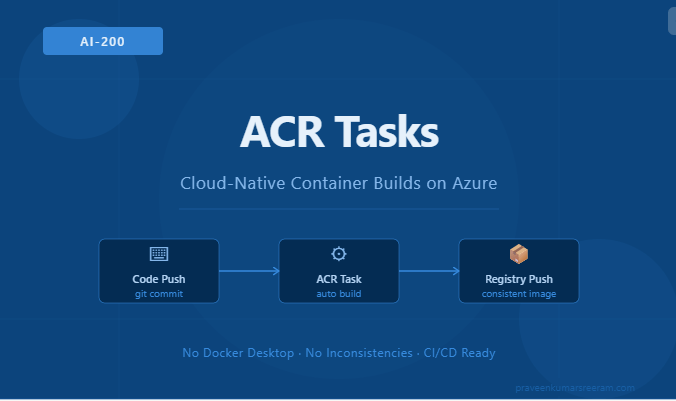
ACR Tasks is a cloud-native build service built directly into Azure Container Registry. Instead of building your container image locally and pushing it to ACR, you offload the entire build, test, and push pipeline to Azure itself.
You do not need Docker Desktop installed. You do not need any container runtime on your local machine. You simply point ACR Tasks at your source code or Dockerfile, and Azure handles everything in the cloud.
ACR Tasks can be triggered in multiple ways:
- Manually via the Azure CLI
- On a Git commit (source code trigger)
- When a base image is updated (base image trigger)
- On a schedule (timer trigger)
Why This Matters for AI-200
The AI-200 exam focuses heavily on building and deploying containerized AI workloads on Azure. Container images are the standard packaging format for AI inference services, model APIs, and agent backends. The exam expects you to understand how to build those images consistently, securely, and at scale — without relying on local tooling that varies per developer.
ACR Tasks directly addresses this. It is the recommended best practice for building container images when working with Azure Container Registry.
The Old Way vs. The New Way
The Old Way (Local Docker Build)
# On developer's local machine
docker build -t myregistry.azurecr.io/myapp:v1 .
docker login myregistry.azurecr.io
docker push myregistry.azurecr.io/myapp:v1
Problems with this approach:
- Requires Docker Desktop installed on every developer machine
- Docker Desktop licensing has changed — it is no longer free for enterprise use
- Build output depends on the local machine’s OS and Docker version
- Credentials must be managed on each developer’s machine
- No built-in audit trail of who built what and when
The New Way (ACR Tasks)
# Build and push entirely in the cloud — no Docker needed locally
az acr build \
  --registry myregistry \
  --image myapp:v1 \
  .
The . at the end tells the CLI to upload your current directory (including the Dockerfile) to Azure as a build context. Azure builds the image in a managed environment and pushes it directly to your registry. No local Docker installation. No credential exposure. Consistent every time.
Types of ACR Tasks
1. Quick Tasks
Quick Tasks are the simplest form of ACR Tasks. They are one-off builds triggered from the command line. Use them when you want to verify your Dockerfile works without setting up automation.
az acr build \
  --registry <registry-name> \
  --image <image-name>:<tag> \
  <path-to-dockerfile-or-git-url>
This is the equivalent of docker build + docker push, but executed entirely in Azure.
2. Automatically Triggered Tasks
These are long-running task definitions that get triggered by events. You define the task once and ACR runs it whenever the trigger fires.
Create a task triggered by a Git commit:
az acr task create \
  --registry <registry-name> \
  --name buildtask \
  --image myapp:{{.Run.ID}} \
  --context https://github.com/myorg/myrepo.git \
  --file Dockerfile \
  --git-access-token <PAT>
Once created, every push to the linked GitHub repository automatically triggers a new build in ACR.
Create a task triggered by a base image update:
If your AI application image is based on mcr.microsoft.com/azure-ml/inference:latest, ACR Tasks can watch that base image and automatically rebuild your application image whenever Microsoft releases an update to the base image. This is especially valuable for AI workloads where inference runtime updates often include security patches.
az acr task create \
  --registry <registry-name> \
  --name rebuild-on-base-update \
  --image myapp:latest \
  --context https://github.com/myorg/myrepo.git \
  --file Dockerfile
3. Multi-Step Tasks
Multi-step tasks let you define a YAML pipeline with multiple build, test, and push steps — similar to a GitHub Actions workflow, but running natively inside ACR.
Example acr-task.yaml:
version: v1.1.0
steps:
  - build: -t $Registry/myapp:$ID -f Dockerfile .
  - push:
      - $Registry/myapp:$ID
  - cmd: $Registry/myapp:$ID echo "Smoke test passed"
Then run it:
az acr run \
  --registry <registry-name> \
  --file acr-task.yaml \
  .
This lets you build, run a quick validation (smoke test), and push only if the test passes — all within ACR, with no external CI system required.
Authentication and Security
One of the important security considerations for the AI-200 exam is how ACR Tasks authenticates to pull base images or push to registries.
ACR Tasks supports two main identity types:
System-Assigned Managed Identity
When you enable a system-assigned managed identity on an ACR task, Azure automatically assigns an identity to that task. You can then grant this identity the AcrPush or AcrPull role on the registry. No passwords. No stored credentials.
az acr task create \
  --registry <registry-name> \
  --name my-task \
  --image myapp:latest \
  --context /dev/null \
  --file Dockerfile \
  --assign-identity
User-Assigned Managed Identity
For scenarios where a single identity needs to be shared across multiple tasks or registries, a user-assigned managed identity gives you finer control.
The key principle is the same either way: avoid storing Docker credentials or ACR passwords in your pipeline definitions. Use managed identities instead.
Monitoring ACR Task Runs
Every task run is logged and queryable:
# List recent task runs
az acr task list-runs --registry <registry-name> --output table

# Stream logs from a specific run
az acr task logs --registry <registry-name> --run-id <run-id>
This gives you a full audit trail — who triggered the build, when it ran, which image was produced, and whether it succeeded or failed.
Key Exam Takeaways for AI-200
Here is a summary of what you need to know for the exam:
| Concept | Key Point |
|---|---|
| Quick Tasks | az acr build — one-shot build and push without local Docker |
| Triggered Tasks | az acr task create — automate builds on Git commit, base image update, or schedule |
| Multi-Step Tasks | YAML-defined pipeline with build, test, and push steps |
| Managed Identity | Preferred authentication — no stored credentials |
| Base Image Triggers | Automatically rebuild when upstream base images are updated |
| Consistency | Builds run in a consistent, cloud-managed environment — not on developer laptops |
Practical Scenario
Imagine your team is building an Azure OpenAI-powered document assistant. The inference container is based on a Microsoft-provided Python runtime image. With ACR Tasks, your workflow looks like this:
- A developer pushes code to GitHub
- ACR Tasks detects the Git commit and triggers a build
- The new image is built, smoke-tested, and pushed to ACR
- When Microsoft updates the base runtime image, ACR Tasks automatically rebuilds your application image
- Every step is logged with a run ID for compliance and debugging
No Docker Desktop. No local credentials. No inconsistency between developer environments. This is the cloud-native way to build containers — and it is exactly what AI-200 expects you to implement.
Conclusion
ACR Tasks removes the dependency on local Docker tooling and replaces it with a fully managed, cloud-native build pipeline inside Azure Container Registry. For teams building containerized AI applications on Azure, this is not just a convenience — it is the best practice for consistency, security, and scalability.
If you are preparing for the AI-200 certification, make sure you can create Quick Tasks, define triggered tasks via the CLI, write a multi-step task YAML file, and configure managed identity authentication. These are the hands-on skills the exam will test you on.
This article is part of the AI-200: Developing AI Cloud Solutions on Azure certification series. Subscribe to the blog for more articles covering containers, Azure AI services, and cloud-native development patterns.
Do you like this article? If you want to get more updates about these kind of articles, you can join my Learning Groups
Discover more from Praveen Kumar Sreeram's Blog
Subscribe to get the latest posts sent to your email.
