 Posted by
 What is Azure App Configuration?
Imagine you are building a microservice architecture — or you are creating many AI apps and agents on Azure. Each of these apps needs environment variables. Some variables are common across all apps (like a shared Azure OpenAI endpoint or a logging level), while others are specific to each app (like a model deployment name or a feature toggle). Now multiply that across 5, 10, or 20 services. Where do you store all of this? How do you keep it consistent? How do you update a value without redeploying every service that uses it?
That is exactly what Azure App Configuration solves. It gives you one central, managed store for all your configuration values and environment variables — shared or app-specific — and your services read from it at runtime. Change a value once in App Configuration, and every app that reads it picks up the change immediately. No redeployment. No hunting through scattered config files, ARM templates, or environment variable panels across a dozen App Services.
Of course, App Configuration supports many more features beyond this — feature flags, dynamic refresh, label-based environments, Key Vault references, and more. We will cover those in later articles in this series. In this article, we focus on how to create an App Configuration store and understand every infrastructure setting along the way. Let’s get started.
Creating Your First App Configuration Store
The creation wizard in the Azure Portal has four tabs that matter: Basics, Access Settings, Advanced, and (optionally) Geo-replication on the Basics tab. Let us walk through each one.
Step 1 — Basics Tab: Name, Region, and Pricing
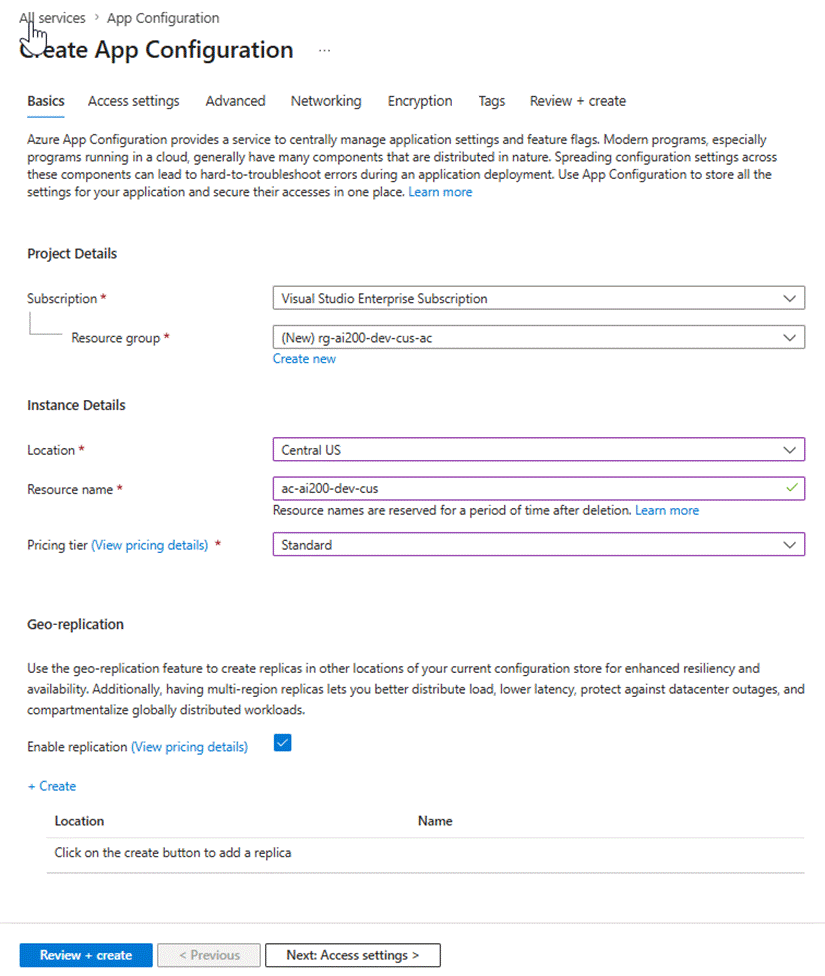
Figure 1: The Basics tab — set your subscription, resource group, region, name, pricing tier, and geo-replication options.
Subscription and Resource Group
Choose the Azure subscription and Resource Group.
Location
Pick the Azure region where your store will be hosted and choose the same region as your application to minimize latency.
Resource Name
Choose a unique name and the URL will be in the format
https://<resource-name>.azconfig.io
Important: Azure reserves your resource name for a period after you delete it. If you delete a store and immediately try to create a new one with the same name, you will get an error. Use a different name or wait.
Pricing Tier
App Configuration Supports the below four Pricing tiers. For most of the Production grade workloads, standard should be sufficient.
| Feature | Free | Developer | Standard | Premium |
| Cost | Free | Low cost | Pay per use | Higher cost |
| Requests | 1,000 (Per day) | 6,000 (Per day) | 30,000 (per hour) | Unlimited |
| Storage | 10 MB | 500 MB | 1 GB | 4 GB |
| Geo-replication | ✘ No | ✘ No | ✔ Yes | ✔ Yes |
| Private endpoints | ✘ No | ✔ Yes (1) | ✔ Yes (10) | ✔ Yes (40) |
| Best for | Learning & quick trials | Dev & test workloads | Production apps | Enterprise & high-scale production |
In the above screenshot I have selected Standard to demonstrate some features like geo-replication.
Geo-Replication (on the Basics Tab)
Geo-replication lets you create read replicas of your configuration store in other Azure regions. Here is why you would enable it:
- Resilience: If the App Configuration in the primary region has an outage, your app can automatically fail over to a replica in another region and keep reading configuration values.
- Lower latency: If you have application instances in multiple regions (common in AI workloads that must be close to users), each instance reads from the nearest replica.
- Load distribution: Traffic is spread across replicas, reducing pressure on a single endpoint.
You enable replication here on the Basics tab by checking the Enable Geo-replication checkbox. Actual replicas are added either here (using the + Create link) or later from the Geo-replication blade in the portal. Note that each replica is billed at the same rate as the primary store.
Step 2 — Creating a Geo-Replica
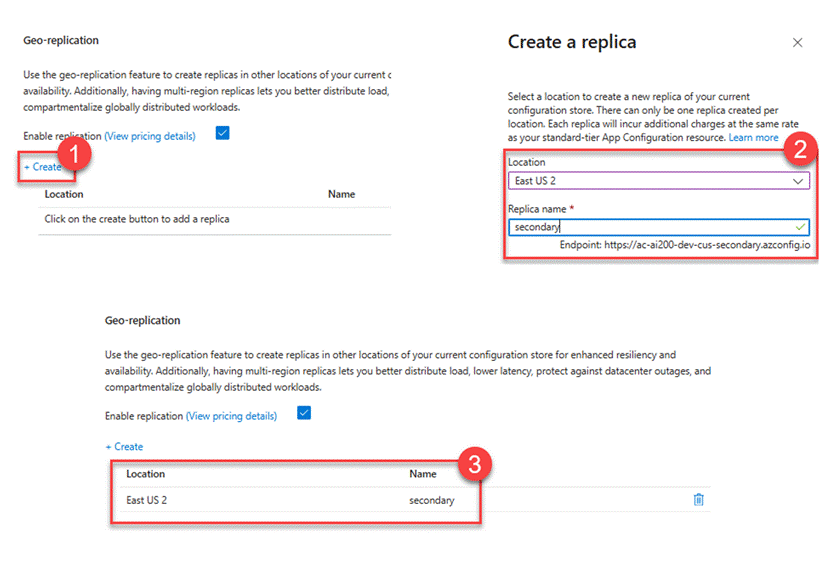
Figure 2: The Create a replica panel — select a location and give the replica a name. The endpoint URL is generated automatically.
After enabling replication, click + Create on the Basics tab. A side panel appears with two fields:
- Location: The Azure region for this replica. Choose a region that is geographically different from your primary — for example, if your primary is Central US, pick East US 2 for the replica.
- Replica name: A short label for this replica. In the screenshot, the name secondary is used. Azure automatically builds the replica endpoint URL as https://<store-name>-<replica-name>.azconfig.io — for example, https://ac-ai200-dev-cus-secondary.azconfig.io.
Once you click OK (or the equivalent), the replica appears in the table with its Location and Name.
Step 3 — Access Settings Tab: How Apps Authenticate
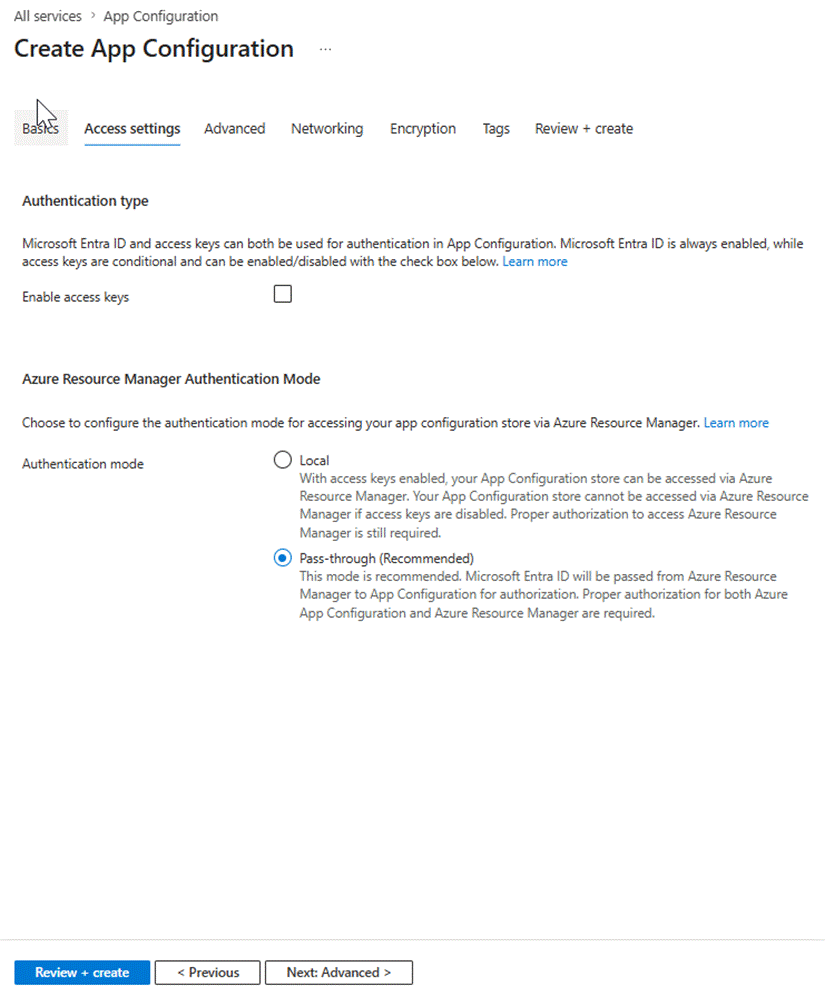
Figure 3: The Access Settings tab — choose between access keys and Microsoft Entra ID authentication, and set the ARM authentication mode.
This tab controls how your application (and other Azure services) are allowed to authenticate with your App Configuration store. There are two independent decisions to make here.
Authentication Type: Access Keys vs. Microsoft Entra ID
App Configuration supports two ways for an application to authenticate:
- Access keys — A connection string (a key + secret pair) that you embed in your app’s configuration. Any app that holds the key can access the store. Simple to set up, but if the key leaks, anyone can read your configuration. Access keys can be rotated, but this requires updating every app that uses them.
- Microsoft Entra ID (formerly Azure Active Directory) — Your app uses its managed identity (or a service principal) to authenticate. No secrets to manage. Azure handles the token exchange. This is the recommended approach for production.
In the screenshot, the Enable access keys checkbox is unchecked — meaning only Entra ID authentication is allowed. This is the more secure default for production environments.
Microsoft Entra ID is always enabled and cannot be turned off. Access keys are optional and off by default on new stores in the portal.
Step 4 — Advanced Tab: Soft Delete and Key-Value Revision Retention
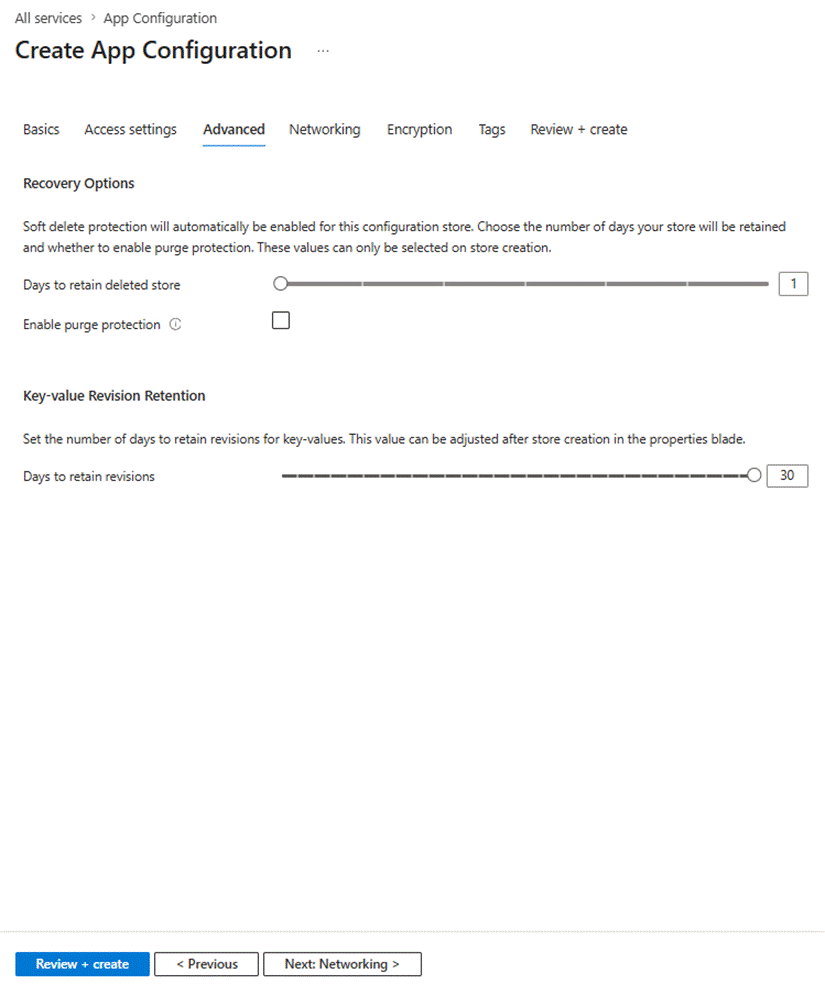
Figure 4: The Advanced tab — configure soft delete protection and key-value revision retention.
The Advanced tab has two sections: Recovery Options (soft delete) and Key-value Revision Retention.
Recovery Options — Soft Delete
Soft delete is automatically enabled for all Standard tier stores. It means that when you delete the store, it is not immediately destroyed — instead it enters a soft-deleted state and is retained for the number of days you configure. During that window, you can recover it.
- Days to retain deleted store: How long the store is kept in a soft-deleted state before it is permanently purged. In the screenshot this is set to 1 day (the minimum). For production stores, set a longer retention period — 7 to 30 days — so you have time to catch accidental deletions.
- Enable purge protection: When this checkbox is checked, the App Configuration store cannot be permanently purged during the retention period — even by an administrator. This is a defence against insider threats or accidental permanent deletion. The tradeoff is that if you intentionally delete the store, you must wait for the retention period to expire before the name becomes available again. This setting can only be enabled at creation time; you cannot turn it on later.
Key-Value Revision Retention
Every time you update a key-value in App Configuration, the previous value is saved as a revision. This gives you a complete history of every change — useful for auditing, rollback, and debugging.
- Days to retain revisions: How many days of history is kept for each key-value. The default is 30 days (shown in the screenshot). If you change a key-value today and then roll back tomorrow, you can restore yesterday’s value from the revision history.
Unlike soft delete retention, this value can be adjusted after the store is created — from the Properties blade in the portal. This makes it safe to start with the default and tune it later based on your compliance requirements.
Summary
In this article, we have learnt how to create Azure App Configuration from the portal, and explored the various pricing tiers and also understood the below critical features of the App Configuration resource below.
| Topic | What to Remember |
| Geo-replication | Standard tier or higher. |
| Geo-replica endpoint | Auto-generated as https://<store>-<replica-name>.azconfig.io. No manual DNS config needed. |
| Authentication | Access Keys and Entra (Recommended) |
| Soft delete | Automatically enabled on Standard tier and higher. Days to retain is set at creation time and cannot be changed afterwards. |
| Purge protection | Prevents permanent deletion during the retention window. Can only be enabled at creation time. |
| Revision retention | Default is 30 days. Unlike soft delete, this can be adjusted after store creation from the Properties blade. |
Next Steps
Once you understand the features and create the App Configuration resource, you need to have proper access to create the Key-Value pairs. Even though, you have created, you still need additional permissions. Let’s discuss about the same in the next article.
Discover more from Praveen Kumar Sreeram's Blog
Subscribe to get the latest posts sent to your email.
