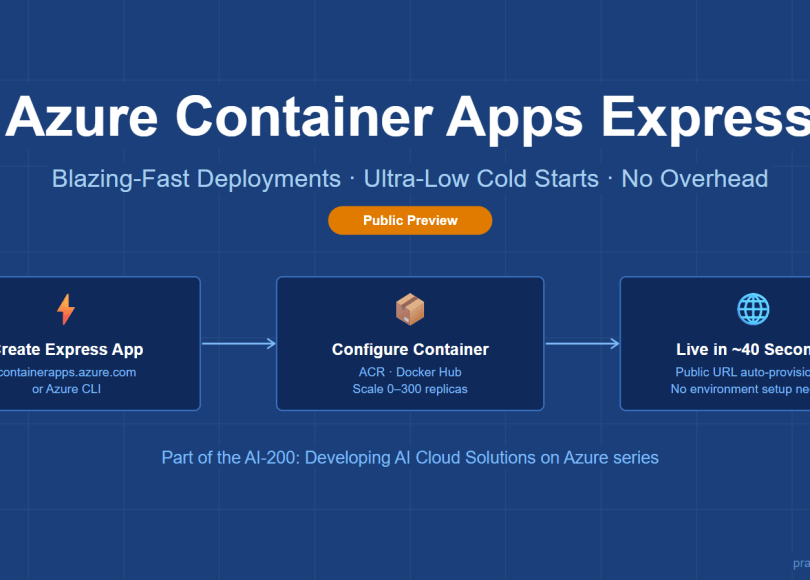
 Posted by
 A hands-on walkthrough of the new Express App (Preview) — only available at containerapps.azure.com and via Azure CLI
Introduction
Every Azure developer knows the friction of spinning up a container-backed web app. You provision a Container Apps Environment, choose between Standard and Advanced creation modes, wire up networking, and only then get to deploy your actual container. For rapid prototyping or CI/CD pipelines, that overhead adds up fast.
Microsoft heard that feedback. Enter Azure Container Apps Express App (Preview) — a third, streamlined creation mode that removes environment pre-provisioning, minimises required fields, and gets you from zero to a publicly accessible container URL in seconds.
In this article we will walk through what Express App is, how it differs from the Standard and Advanced modes, and take a hands-on tour using the dedicated portal at https://containerapps.azure.com — because, as of this writing, Express App is not yet available in the main Azure Portal (portal.azure.com) for creation. However, post creation, you can update the same via the portal. Alternatively, you can use Azure CLI for provisioning the same.
The Three Container App Types
Before diving into Express, it helps to understand the three types of resources you can create under Azure Container Apps:
1. Azure Container Apps — The standard, generally available option. Ideal for production workloads with auto-scale to zero, revision management, and full environment control.
2. Azure Container App Session Pools — Designed for dynamic, on-demand serverless sessions (e.g., code execution sandboxes). Separate pricing and resource model.
3. Azure Container App Express (Preview) — The newest addition. Optimised for blazing-fast deployments with ultra-low cold starts and a dramatically simplified experience. Currently in Public Preview.
This article focuses entirely on option 3.
| Important: Express App (Preview) cannot be created from the main Azure Portal (portal.azure.com) at the time of this writing. You must use https://containerapps.azure.com or the Azure CLI. |
Step 1 — Sign In at containerapps.azure.com
Navigate to https://containerapps.azure.com. You will be presented with the Container Apps portal login page. Click Sign in with Microsoft and authenticate with the account that has access to your Azure subscription.
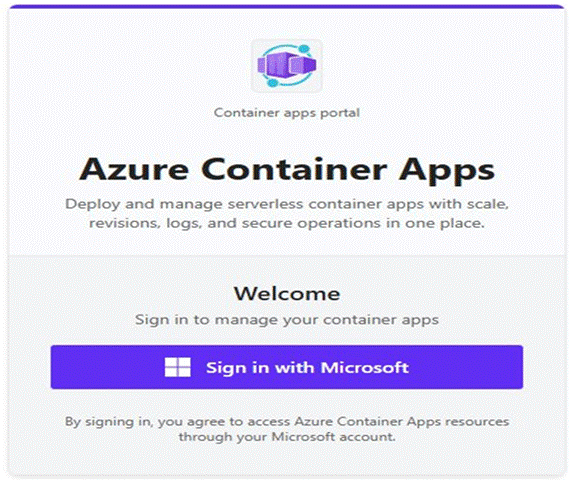
Figure 1 — The dedicated Container Apps portal login page at containerapps.azure.com
Once authenticated, you land on the welcome dashboard personalised to your account. Click Create new to begin provisioning your first Express App.
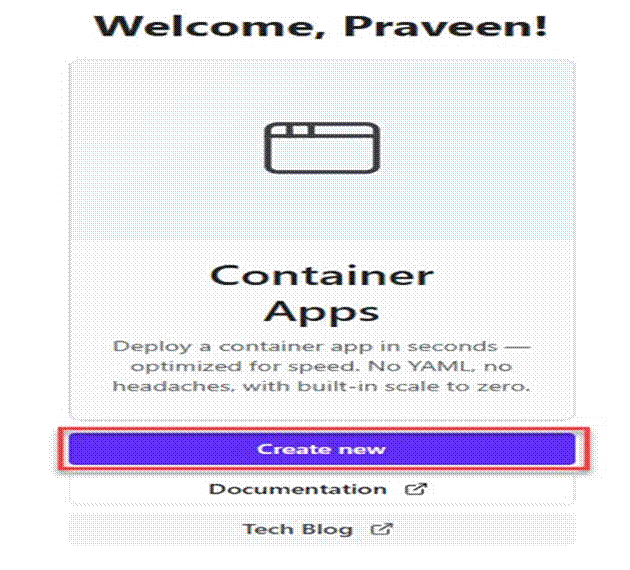
Figure 2 — Welcome dashboard showing the Create new button
Step 2 — Select the Express App (Preview) Mode
The Create Container App wizard presents three creation mode tabs across the top:
- Standard — Quick config, auto-scale to zero, generally available
- Advanced — Custom networking, enterprise ready, generally available
- Express App (Preview) — Blazing fast deployments, ultra-low cold starts, a simpler experience
Click Express App (Preview) (tab 1 in the screenshot below). The form immediately simplifies. You need to provide only three things:
- App Name (e.g., container-app-2487)
- Resource Group (e.g., rg-2487 — a new one will be created automatically if it does not exist)
- Region — Currently Express App supports East Asia and West Central US. Select your preferred region from the dropdown (step 2)
The Container section defaults to the Microsoft quickstart image (mcr.microsoft.com/k8se/quickstart:express) with 0.5 vCPU and 1 GB memory. The Networking section defaults to Publicly Accessible on port 80 — no extra configuration needed to get a public URL.
When ready, click Create (step 3 in the screenshot).
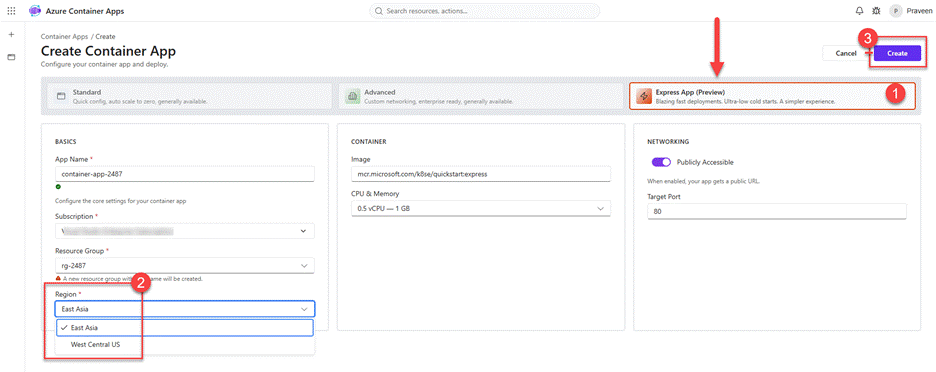
Figure 3 — Selecting Express App (Preview), choosing a region, and clicking Create
Step 3 — Review and Confirm
Before deployment begins, a Review panel slides in from the right. It summarises your configuration and runs a live validation:
- App name: container-app-2487
- Resource group: rg-2487
- Region: East Asia
- Image: mcr.microsoft.com/k8se/quickstart:express
- CPU / Memory: 0.5 vCPU — 1 GB
- Ingress: External, port 80
- Scale: 0–1 replicas
- Environment type: Express (Preview)
All validation checks must pass (green ticks) before the Create Container App button becomes active:
- Check resource providers — Microsoft.App registered
- Check resource group — “rg-2487” will be created
- Check app name uniqueness — Name is available
- Resolve Express environment — No environment yet, will be created on submit
- ARM template validation — Skipped (no environment to validate against yet)
Click Create Container App to deploy.
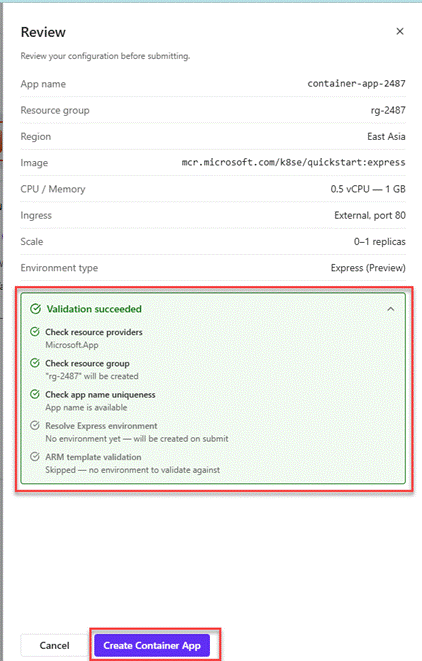
Figure 4 — Review panel with all validations passing and the Create Container App button
| Key insight: Unlike Standard or Advanced mode, Express App auto-provisions the Container Apps Environment for you on submit. There is no ‘Create environment first’ step. |
Step 4 — Post-Deployment: Updating the Container Image
Once deployed, navigate to your app in the portal (or via the link in containerapps.azure.com). Under Configure, click Container. This is where you can swap the quickstart image for your own.
The Image Source options are:
- Azure Container Registry — Pull from a private ACR instance (recommended for production)
- Docker Hub or other registries — Use any public or private registry
- None (quickstart image) — Default selection, using mcr.microsoft.com/k8se/quickstart:express
You can also adjust CPU and Memory here. The default of 0.5 cores / 1 Gi is sufficient for most lightweight workloads, but you can increase this as needed.
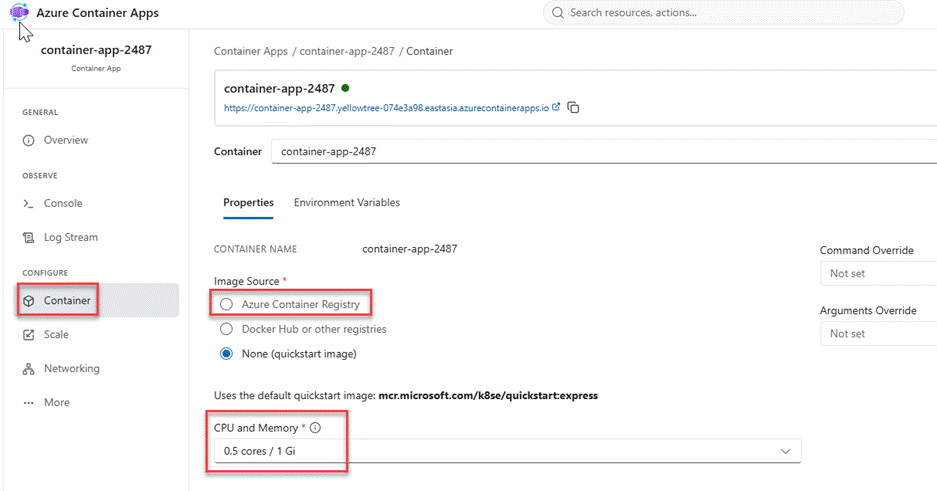
Figure 5 — Container blade: choosing Azure Container Registry as the image source
| ACR Integration tip: If you have been following the ACR Tasks articles in this series, this is where those ACR-built images plug in. Point Image Source to Azure Container Registry, select your registry and repository, and the app will pull your custom image on the next revision. |
Step 5 — Configuring Scale
Navigate to Configure > Scale. You will see that autoscale is not pre-configured on a freshly created Express App. The platform applies default scale behaviour until you define your own min/max replicas or scale rules.
Click Configure scale to set:
- Minimum replicas — Set to 0 to enable true scale-to-zero (cost-efficient for dev/test)
- Maximum replicas — Supports up to 300 replicas, making Express App suitable for high-traffic burst scenarios
- Scale rules — HTTP concurrency, CPU/memory thresholds, or custom KEDA-based rules
Note that the revision model is immutable — any change to scale configuration creates a new revision (e.g., container-app-2487–latest becomes container-app-2487–<new-revision>). The original revision is preserved and not modified.
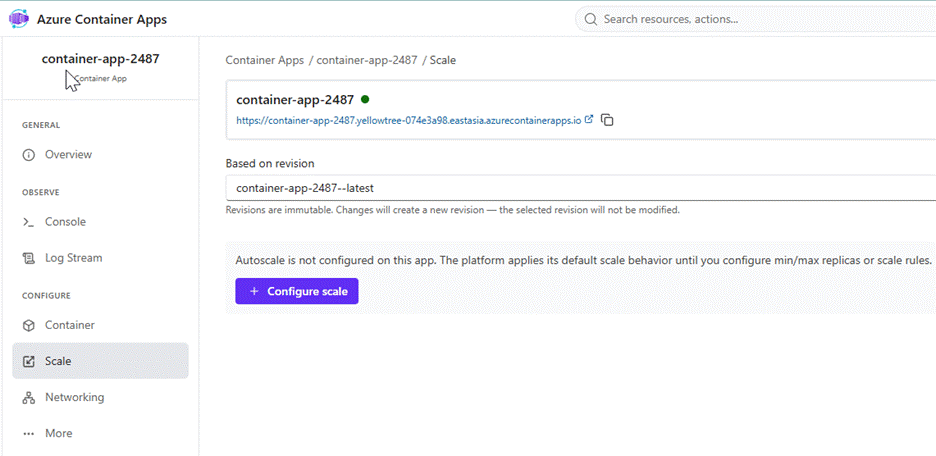
Figure 6 — Scale blade: autoscale is not configured by default; click Configure scale to set min/max replicas up to 300
Step 6 — Networking and Ingress
Navigate to Configure > Networking. The Ingress tab shows that external ingress is enabled by default on port 80 with HTTP transport.
The Ingress traffic dropdown gives you two scope options:
- Accepting traffic from anywhere (default) — Your app is fully public-facing. Anyone with the URL can reach it.
- Limited to Container Apps Environment — Restricts traffic to other apps within the same Container Apps Environment. Useful for backend services that should not be internet-facing.
The second tab, IP Restrictions, allows you to lock down access to specific IP address ranges or CIDR blocks — an important security control for staging environments or internal tools.
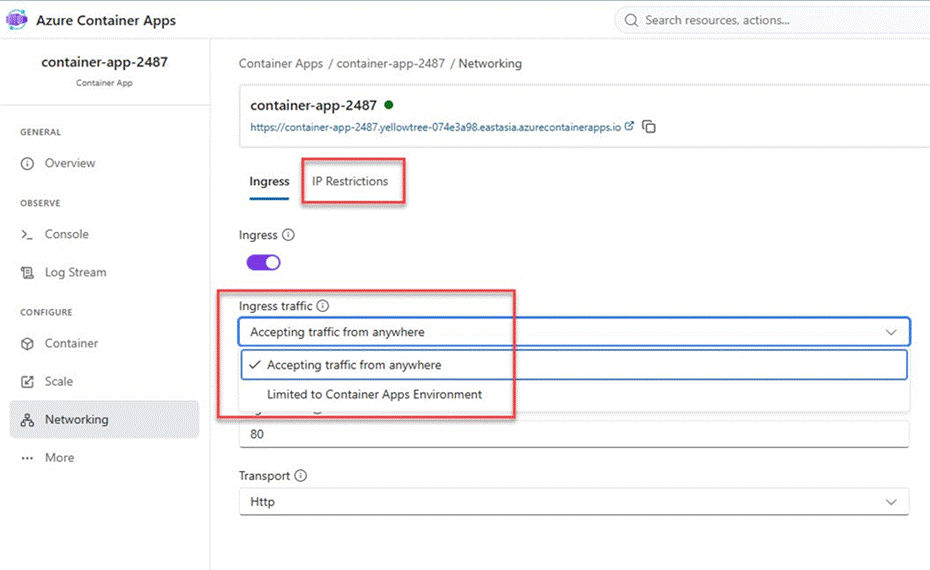
Figure 7 — Networking blade: ingress traffic scope options and the IP Restrictions tab
Creating an Express App via Azure CLI
The portal at containerapps.azure.com is the GUI path, but you can also provision Express Apps entirely from the command line. Below is the equivalent Azure CLI command in Windows CMD format:
| az containerapp create ^ –name container-app-express-demo ^ –resource-group rg-express-demo ^ –environment-type express ^ –image mcr.microsoft.com/k8se/quickstart:express ^ –cpu 0.5 –memory 1.0Gi ^ –target-port 80 ^ –ingress external ^ –location eastasia |
Note: –environment-type express is the flag that opts you into Express mode. If you omit it, az containerapp create defaults to Standard mode and requires an existing or new named environment.
| Windows CMD reminder: Always use ^ for line continuation in Azure CLI commands on Windows CMD. Never use the bash-style \ continuation character — it will break the command. |
Express vs Standard vs Advanced: Quick Comparison
| Feature | Standard | Advanced | Express (Preview) |
| GA Status | Generally Available | Generally Available | Public Preview |
| Portal (portal.azure.com) | Yes | Yes | No |
| Dedicated Portal | N/A | N/A | containerapps.azure.com |
| Azure CLI Support | Yes | Yes | Yes |
| Auto-provision Environment | No | No | Yes |
| Max Replicas | 300 | 300 | 300 |
| Custom Networking (VNet) | No | Yes | No |
| Cold Start | Standard | Standard | Ultra-low |
| Best For | General workloads | Enterprise / VNet | Rapid prototyping / dev |
Key Exam Takeaways
Whether you are preparing for AI-200 (Developing AI Cloud Solutions on Azure) or simply building your Azure Container Apps knowledge, here is what to retain:
| Concept / Area | What to Know |
| Express App (Preview) | A new, simplified creation mode in Azure Container Apps — not yet available via the Azure Portal. Use containerapps.azure.com or Azure CLI. |
| Environment Type | Express environments are auto-provisioned on submit. No pre-existing environment is required. |
| Image Source Options | Azure Container Registry, Docker Hub, or quickstart images (e.g., mcr.microsoft.com/k8se/quickstart:express). |
| Scale | Supports 0–1 replicas by default; configurable up to 300 via the Scale blade. Scale rules not pre-configured. |
| Networking (Ingress) | External ingress enabled by default on port 80 (HTTP). Traffic scope: “Accepting traffic from anywhere” or “Limited to Container Apps Environment”. |
| IP Restrictions | Available as a separate tab under Networking — useful for locking down access to specific CIDRs. |
| CPU / Memory | 0.5 vCPU / 1 GB default for Express apps. Can be changed post-creation via the Container blade. |
| Revision Model | Revisions are immutable. Any configuration change (container, scale) creates a new revision. |
| Portal Availability | Not currently available in the main Azure Portal (portal.azure.com). Use https://containerapps.azure.com. |
Practical Scenario: Deploy a Custom Express App in Under 3 Minutes
Here is a realistic end-to-end flow combining what we have covered:
1. Build your image using ACR Tasks (az acr build) and push to your Azure Container Registry.
2. Open https://containerapps.azure.com and sign in.
3. Click Create new , select Express App (Preview), fill in App Name, Resource Group, and Region.
4. After creation, navigate to Container > Image Source and switch from quickstart image to Azure Container Registry. Select your registry and image tag.
5. Navigate to Scale and set min replicas to 0, max to your expected burst capacity.
6. Navigate to Networking and optionally restrict ingress to a known IP range via IP Restrictions.
7. Your app is live at a URL like https://<app-name>.<unique-id>.<region>.azurecontainerapps.io.
Total time from zero to live URL: under 3 minutes, no environment pre-provisioning required.
Conclusion
Azure Container Apps Express App (Preview) is a genuine step forward for developers who need speed without sacrificing the underlying power of the Container Apps platform. The dedicated portal at containerapps.azure.com brings a focused, frictionless experience — and the CLI path makes it fully automatable in CI/CD pipelines.
Key things to remember: Express mode auto-provisions its environment, supports up to 300 replicas, and is currently only accessible outside the main Azure Portal. Watch for GA announcement — once it ships to portal.azure.com, expect it to become the go-to starting point for most container workloads.
This article is part of the AI-200: Developing AI Cloud Solutions on Azure certification series.
Do you like this article? If you want to get more updates about these kind of articles, you can join my Learning Groups
Discover more from Praveen Kumar Sreeram's Blog
Subscribe to get the latest posts sent to your email.
