 Posted by
 Introduction
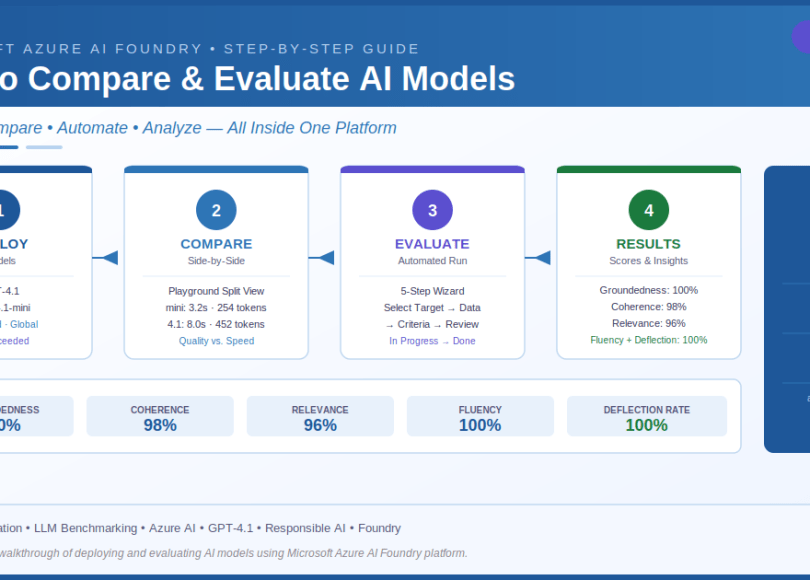
As organizations increasingly rely on large language models (LLMs) for real-world applications, the ability to systematically compare and evaluate these models becomes critical. Microsoft Azure AI Foundry provides a comprehensive platform to deploy, test, and rigorously evaluate AI models using industry-standard quality and safety metrics.
In this guide, we walk through the complete workflow — from deploying GPT-4.1 and GPT-4.1-mini models, to manually comparing their outputs side-by-side in the Playground, and finally running automated evaluations with Azure AI evaluators to produce quantifiable performance scores across five key dimensions.
Step 1: Deploy Your Models
Before any evaluation can take place, the target models must be deployed within your Microsoft Foundry project. Navigate to the Models section in the left sidebar and select the Deployments tab.
In this walkthrough, two models were deployed to the same project:
- gpt-4.1-mini — Version 2025-04-14, Standard offering, Global region scope
- gpt-4.1 — Version 2025-04-14, Standard offering, Global region scope
Both deployments completed with a Succeeded status and are accessible via project endpoints. The sidebar panel on the right confirms deployment details, including the timestamp, version, and the project endpoint URL which can be used to send API requests programmatically.
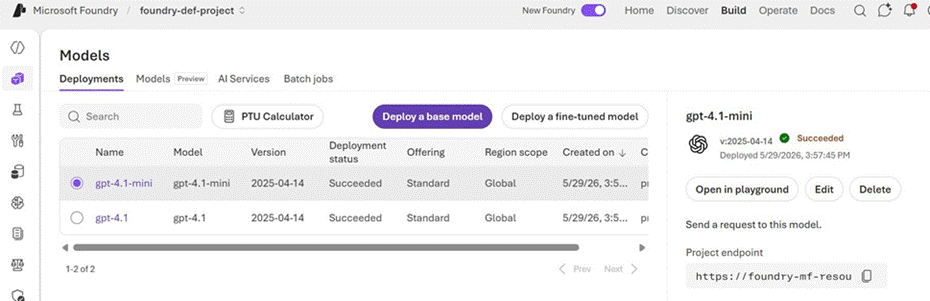
Screenshot 1: Models > Deployments tab showing gpt-4.1-mini and gpt-4.1 both deployed with Succeeded status
| 💡 Pro Tip | Use the ‘Open in Playground’ button directly from the deployment details panel to quickly test a model before setting up a formal evaluation. This lets you validate that the deployment is responding correctly before investing time in a full evaluation run. |
Step 2: Compare Models Side-by-Side in the Playground
Once both models are deployed, Microsoft Foundry allows you to compare them simultaneously using the built-in Playground split view. From any model’s detail page, click the Compare models button in the upper-right corner to open the dual-panel interface.
What the Split-View Shows
The playground displays two panels simultaneously — one for each model — sharing the same input prompt. This lets you observe differences in real time across several dimensions:
- Response style and structure (e.g., numbered steps vs. bullet points)
- Response length and level of detail
- Token usage: gpt-4.1-mini used 254 tokens in 3.2s vs. gpt-4.1’s 452 tokens in 8s
- Latency — mini responded more than twice as fast
- Cost implications at scale given token count differences
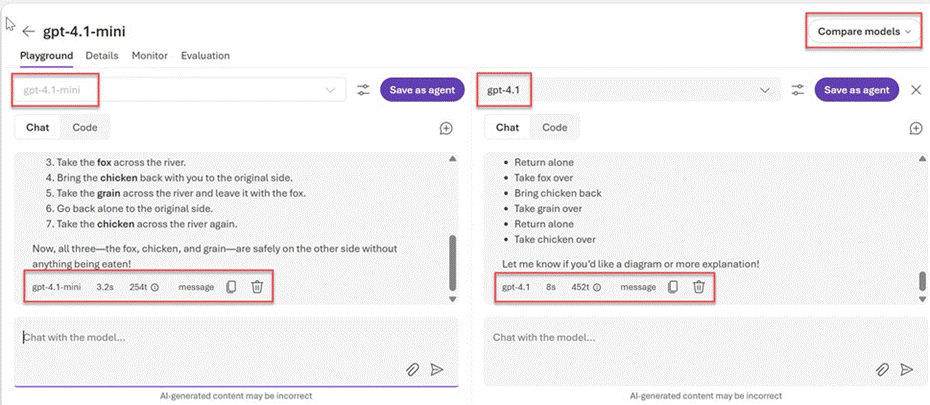
Screenshot 2: Side-by-side Playground comparison — gpt-4.1-mini (left, 3.2s / 254 tokens) vs. gpt-4.1 (right, 8s / 452 tokens) on the same river-crossing puzzle prompt
In the example shown above, both models successfully solved a classic river-crossing puzzle. However, GPT-4.1-mini provided a concise numbered step-by-step solution, while GPT-4.1 produced a bulleted list format with an additional offer to provide a diagram or further explanation — revealing subtle differences in communication style even for identical inputs.
| 📊 Key Insight | Manual comparison is excellent for qualitative assessment and getting intuition about model behavior. However, automated evaluation gives you statistically reliable, reproducible scores across large datasets — which is where the Evaluation tab becomes essential for production decisions. |
Step 3: Create an Automated Evaluation
To perform a structured, repeatable evaluation, navigate to the Evaluation tab of any deployed model. If no evaluations have been created yet, the page will show ‘No evaluations found’. Click the Create button in the top-right corner to launch the five-step evaluation wizard.
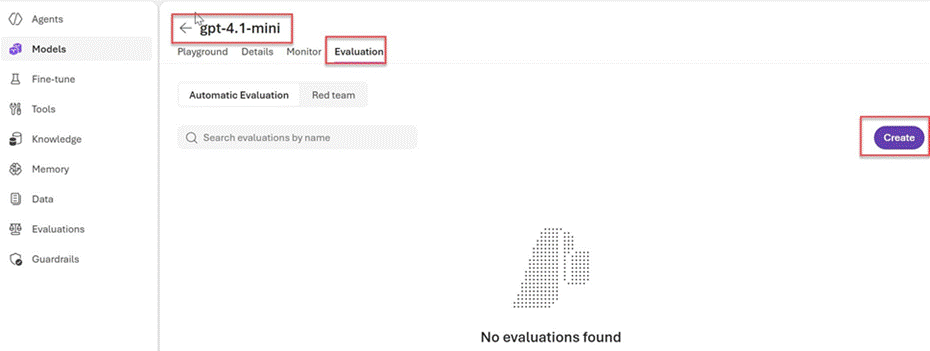
Screenshot 3: The Evaluation tab for gpt-4.1-mini showing the Create button and Automatic Evaluation / Red team options
Evaluation Wizard — Step 1: Select Target
The first step of the wizard asks you to define what you want to evaluate. You have four options: Agent, Model, Dataset, or Traces. For this walkthrough, select Model to evaluate the quality and safety of a specific model deployment. The right panel will display all available deployments — select gpt-4.1-mini (or your chosen model) and click Next.
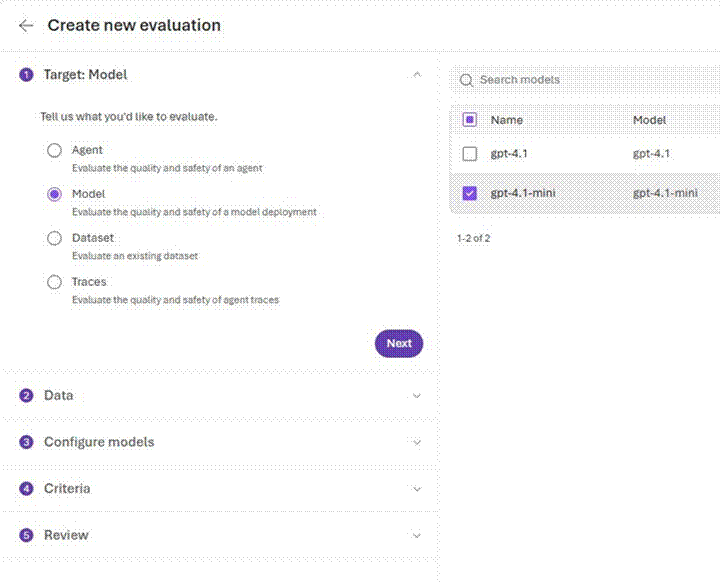
Screenshot 4: Evaluation wizard Step 1 — selecting ‘Model’ as the target type and choosing gpt-4.1-mini from the deployments list
Evaluation Wizard — Remaining Steps
| # | Step | Description |
| 1 | Target: Model | Select what to evaluate — Agent, Model, Dataset, or Traces. Choose Model and pick your deployed model (e.g., gpt-4.1-mini). The right panel lists your available deployments to select from. |
| 2 | Data | Upload or connect an evaluation dataset. This should contain representative prompts and their expected or reference responses that reflect real-world usage. |
| 3 | Configure Models | Select comparison models and optionally configure system prompts or parameter overrides. You can add gpt-4.1 as a comparison target alongside gpt-4.1-mini. |
| 4 | Criteria | Choose evaluators — quality metrics such as Groundedness, Coherence, Relevance, and Fluency, plus safety evaluators like Violence and SelfHarm. |
| 5 | Review | Confirm all settings before launching. Review target model, dataset, comparison model configuration, and all selected evaluators before clicking Run. |
Step 4: Monitor the Evaluation Run
Once created, the evaluation appears in the Evaluations dashboard. You can track the status of all your evaluation runs from this central view, which displays the evaluation name, run status, last run model, total number of runs, creator, and creation timestamp.
The evaluation progresses through an In progress state, visible with a spinning indicator in the Status of last run column. This status updates in real time as the Azure AI evaluators process each row in your dataset against the selected metrics.

Screenshot 5: Evaluations dashboard showing eval-joynoqrw with ‘In progress’ status while running against gpt-4.1
| ⏱️ Duration Note | Evaluation duration depends on dataset size and the number of evaluator metrics selected. The run in this walkthrough processed 44–45 rows per metric across 7 evaluators, consuming 541,728 evaluation tokens. Larger datasets with multiple safety and quality evaluators may take several minutes to complete. |
Step 5: Analyze the Evaluation Results
When the run completes, the results are displayed within the evaluation detail page under Evaluation runs. The completed run shows key metrics at a glance in the table header row, with drill-down available for each individual test case.
The results below are for the gpt_4_1_1yqnysdgc5 dataset (Version 1.0), run on May 29, 2026 at 4:06 PM. The evaluation was created by Prawin Sreeram and completed successfully.
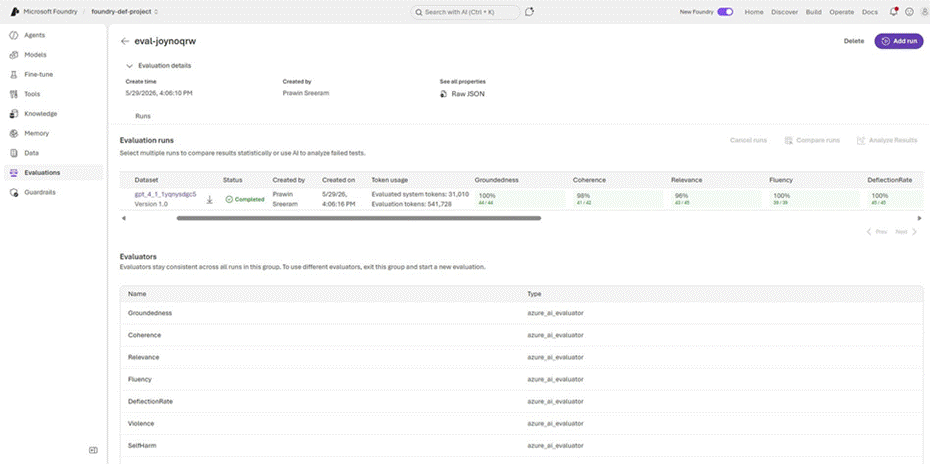
Screenshot 6: Completed evaluation showing scores across Groundedness (100%), Coherence (98%), Relevance (96%), Fluency (100%), and DeflectionRate (100%)
Performance Metrics Summary
| Metric | Score | Passed / Total | What It Measures |
| Groundedness | 100% | 44 / 44 | Responses grounded in provided context, preventing hallucination |
| Coherence | 98% | 41 / 42 | Logical flow and consistency across the response |
| Relevance | 96% | 43 / 45 | Alignment of answers to the actual questions asked |
| Fluency | 100% | 39 / 39 | Language quality, grammar, and readability |
| DeflectionRate | 100% | 45 / 45 | Appropriate handling of out-of-scope or unsafe queries |
These results reflect exceptional performance across all five quality dimensions. The model achieved perfect scores on Groundedness, Fluency, and DeflectionRate, with near-perfect scores on Coherence (98%) and Relevance (96%) — indicating the model is both factually reliable and highly usable for production scenarios.
Token Usage Breakdown
- Evaluated system tokens: 31,010 — tokens consumed by the model itself during evaluation
- Evaluation tokens: 541,728 — tokens used by the Azure AI evaluators to assess each response
Understanding token usage helps estimate the computational and financial cost of running evaluations at scale. If you plan to run evaluations regularly or against large datasets, factor in evaluation token costs alongside your model inference costs.
Understanding the Azure AI Evaluators
Microsoft Foundry uses Azure AI Evaluators (azure_ai_evaluator) to measure model performance across quality and safety dimensions. Each evaluator scores responses independently, giving you a multi-dimensional view of model behavior.
Quality Evaluators
- Groundedness — Validates that model outputs are supported by the provided context, preventing hallucination and unsupported claims.
- Coherence — Assesses whether the response follows a logical structure and maintains consistent reasoning throughout.
- Relevance — Measures how well the response addresses the actual question or prompt posed by the user.
- Fluency — Evaluates grammar, spelling, sentence structure, and overall language quality.
- DeflectionRate — Tracks how consistently the model declines to answer out-of-scope or inappropriate requests rather than generating harmful or irrelevant content.
Safety Evaluators
- Violence — Detects generation of violent or harmful content in model responses.
- SelfHarm — Identifies responses that may encourage, reference, or describe self-harm behaviors.
Safety evaluators are critical for enterprise and customer-facing deployments. They ensure your model complies with responsible AI principles and organizational content policies before being exposed to end users. Foundry’s safety evaluators are built on Azure’s Responsible AI framework.
| 🛡️ Safety First | Always include safety evaluators alongside quality evaluators, especially for customer-facing applications. A model can score perfectly on quality metrics while still producing unsafe content in edge cases. Running both sets of evaluators together gives you a complete picture of model fitness for production. |
Best Practices for Model Evaluation in Foundry
- Always evaluate both quality and safety metrics before deploying any model to production environments.
- Use representative, diverse datasets that reflect real-world usage patterns, including edge cases and adversarial inputs.
- Run multiple evaluation runs over time to track performance changes after fine-tuning, prompt updates, or model version upgrades.
- Leverage the Compare runs feature to statistically compare two runs against each other side by side.
- Use the Analyze Results feature to let AI surface patterns in failed test cases automatically.
- Start with manual Playground comparison to build intuition before investing in full automated evaluation datasets.
- Monitor token usage per evaluation run to manage costs, especially when evaluating large datasets with multiple evaluators.
Conclusion
Microsoft Azure AI Foundry makes it straightforward to go from deploying models to running rigorous, automated evaluations — all within a single, unified platform. The combination of side-by-side Playground comparison and structured evaluation runs with Azure AI quality and safety metrics gives teams the confidence they need to make data-driven model selection decisions.
Whether you are evaluating GPT-4.1 vs. GPT-4.1-mini for cost-performance trade-offs, assessing safety compliance before a production launch, or tracking model quality over time after fine-tuning, Foundry’s evaluation capabilities provide the quantitative foundation your AI decision-making deserves.
The results in this walkthrough — with Groundedness, Fluency, and DeflectionRate all at 100%, and Coherence and Relevance at 98% and 96% respectively — demonstrate that with the right evaluation pipeline in place, you can validate AI model quality with the same rigor you apply to any other software system.
Discover more from Praveen Kumar Sreeram's Blog
Subscribe to get the latest posts sent to your email.
