 Posted by
 Introduction
Microsoft Foundry is a unified platform for building, deploying, and operating AI-powered applications on Azure. While the Build and Discover tabs help you create and explore AI resources, the Operate tab is where you manage and govern everything in production.
The Operate tab — also known as the Foundry Control Plane — brings together fleet management, compliance enforcement, quota tracking, and project administration into a single interface. It is designed for enterprise administrators, AI developers, and platform operators who need visibility and control across multiple projects and subscriptions.
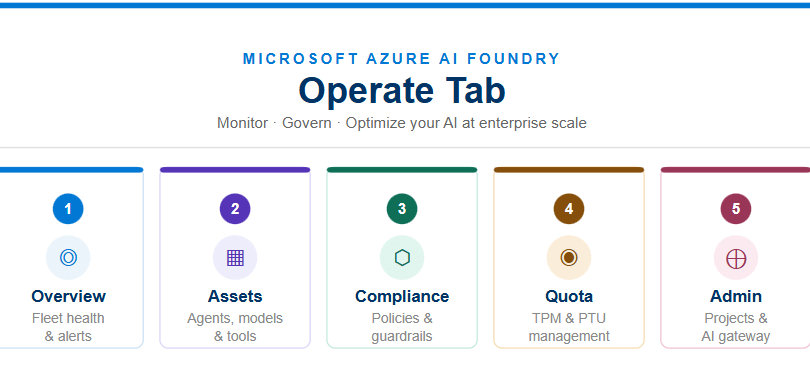
💡 The Operate tab is accessible from the top navigation bar in the Microsoft Foundry portal. It contains five key menu items: Overview, Assets, Compliance, Quota, and Admin.
The Operate Tab at a Glance
Once you click Operate in the top navigation bar, the left sidebar reveals five menu items, each focused on a different operational domain. The sections below walk through each one in detail.
1. Overview
The Overview page is your operational dashboard — the first screen you see when you land on the Operate tab. It aggregates key health, performance, and compliance metrics across all your AI resources in one place, giving you a high-level snapshot without navigating to individual projects.
What you can do here
- View active alerts and drill into anomalies or cost spikes through contextual charts.
- See the count of running agents and estimated costs for the selected time range.
- Use the Ask AI bar to analyze performance trends or get guidance on optimizing token usage.
- Filter the view by Subscription and Project, and select a time range (Last Day, 7D, or 1M).
- Access quick links to agent inventory, observability dashboards, and policy information.
💡 The Overview page is currently in Preview. Non-Foundry agent data is always displayed; select a specific project to view Foundry-specific data.
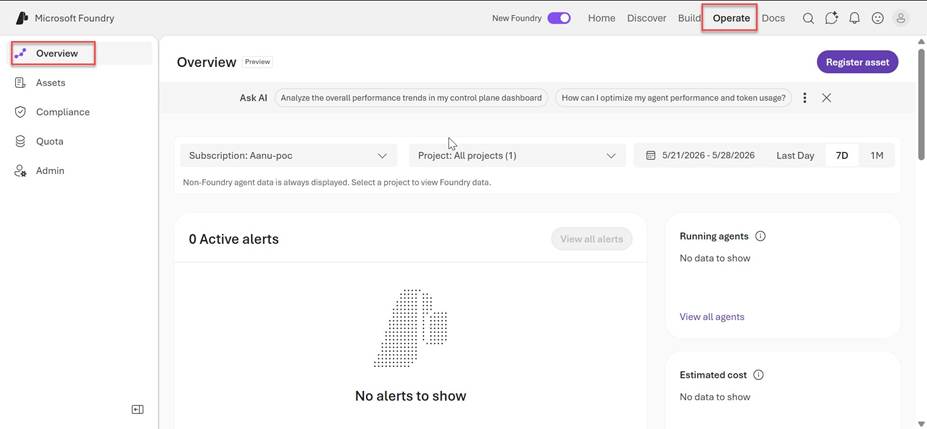
Figure 1: The Overview page showing active alerts, running agents, and estimated cost metrics.
2. Assets
The Assets page gives you a unified, searchable inventory of every AI resource registered in your subscription — across agents, models, and tools. Rather than navigating into each individual project, Assets consolidates them all so you can assess and act on your AI resources from one place.
Three tabs organize your resources
- Agents — Lists all AI agents registered across your projects, with health indicators and metadata.
- Models — Shows model deployments available within the subscription.
- Tools — Displays tools connected to your agents and projects.
What you can do here
- Search and filter assets by attributes such as name, version, source, health score, or token usage.
- Register a new asset using the Register asset button in the top-right corner.
- Drill down from any asset into its evaluation or monitoring details.
- Identify assets with compliance violations or degraded health scores at a glance.
💡 Assets is currently in Preview. If no assets appear, start by registering a new asset or adjusting your subscription and project filters.
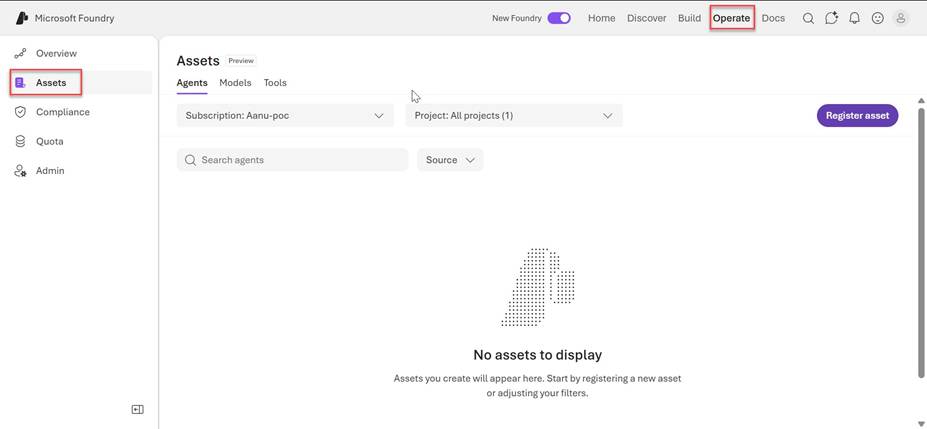
Figure 2: The Assets page with Agents, Models, and Tools tabs for managing your AI resource inventory.
3. Compliance
The Compliance page is your enterprise governance hub. It provides a unified interface for enforcing responsible AI principles, monitoring your security posture, and maintaining regulatory alignment across all your AI assets. It integrates deeply with Azure Policy, Microsoft Defender for Cloud, and Microsoft Purview.
Four tabs cover different governance areas
- Policies — Create, view, and manage guardrail policies. Track policy assignments and audit compliance status for each asset.
- Guardrails — Review guardrail configurations across deployments and identify any coverage gaps.
- Security posture — View Microsoft Defender for Cloud recommendations and surface potential vulnerabilities or misconfigurations.
- Data security and governance — Manage Microsoft Purview integration to enforce data governance standards across your AI workloads.
What you can do here
- Create a new policy using the Create policy button to enforce safety and quality requirements across all deployments.
- Monitor compliance posture in real time and surface noncompliant assets.
- Perform bulk remediation to correct noncompliant configurations across your entire agent fleet.
- Filter compliance data by Subscription and time range (Last Day, 7D, or 1M).
💡 Compliance is currently in Preview. After creating a guardrail policy, allow up to 30 minutes for it to appear and for Azure Policy to complete its evaluation scan.
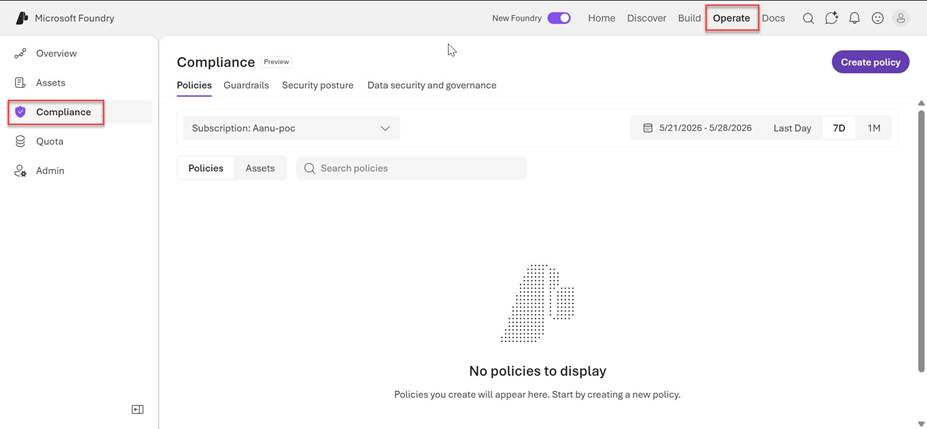
Figure 3: The Compliance page showing Policies, Guardrails, Security posture, and Data security tabs.
4. Quota
The Quota page lets you view, manage, and request quota allocations for your model deployments. Azure assigns quota per subscription, per region, and per model in units of tokens per minute (TPM). The Quota page brings all of that together so you can track usage and plan capacity without leaving the Foundry portal.
Two tabs for different deployment types
- Token per minute (TPM) — View and manage rate-limit quota for standard pay-as-you-go deployments. Quota is measured in tokens processed per minute.
- Provisioned throughput unit (PTU) — View and manage PTU allocations for provisioned deployments, which provide reserved, guaranteed throughput for production workloads.
What you can do here
- Search and filter quota allocations by Deployment type, Model, and Scope.
- Toggle Show all to display models with zero quota alongside those with existing allocations.
- Select any deployment to open its details and adjust or reallocate quota.
- Request a quota increase via the Request quota button, which opens the Azure quota increase form.
💡 Quota is required to create deployments. TPM quota is separate from a model’s maximum input token limit — changing TPM does not affect the context window size of a model.
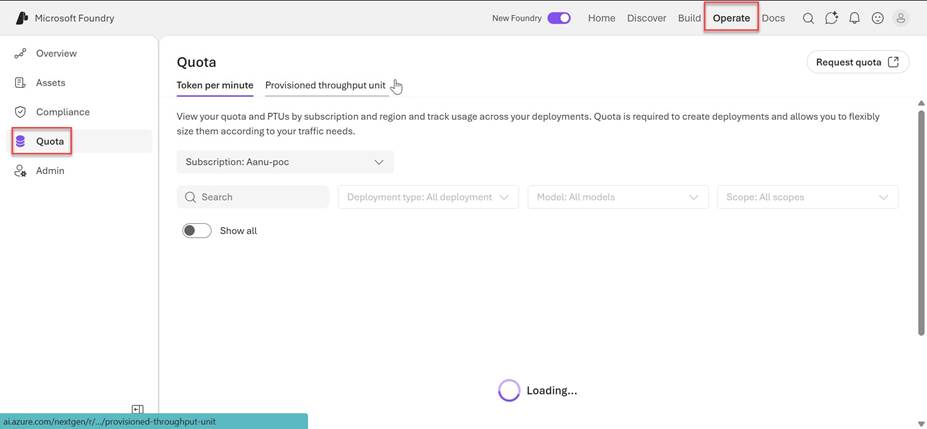
Figure 4: The Quota page showing Token per minute and Provisioned throughput unit tabs with deployment filters.
5. Admin
The Admin page is the project management hub within the Operate tab. It gives administrators a cross-subscription view of all Foundry projects and provides access to advanced gateway controls through the AI Gateway feature.
Two tabs for project and gateway management
- All projects — Lists every Foundry project across your subscriptions, showing the project name, parent resource, subscription, and region in a single table.
- AI Gateway (Preview) — Provides access to AI gateway configurations, including token limit enforcement for specific model deployments within your projects.
What you can do here
- Search and filter projects by subscription using the search bar and Subscription dropdown.
- Create a new project directly from this page using the Create project button.
- Click on a project name to navigate to its details, or click on its parent resource to inspect the Foundry resource it belongs to.
- Use AI Gateway to configure per-project token limits, preventing a single project from consuming all available capacity.
💡 To use AI Gateway features, the API Management Service Contributor role (or Owner) on the Azure API Management resource is required. Token limits configured through the gateway apply immediately to subsequent requests.
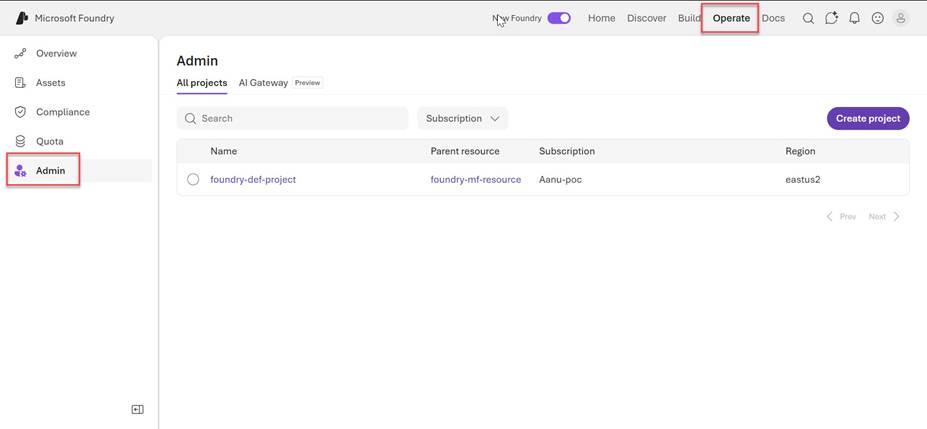
Figure 5: The Admin page listing all Foundry projects with their parent resource, subscription, and region.
Summary
The table below summarizes each menu item in the Operate tab and its primary purpose.
| Menu Item | Purpose | Status |
| Overview | Fleet health dashboard — alerts, agent status, cost trends, and Ask AI. | Preview |
| Assets | Searchable inventory of all agents, models, and tools across projects. | Preview |
| Compliance | Policy management, guardrails, security posture, and data governance. | Preview |
| Quota | TPM and PTU quota management, allocation adjustment, and increase requests. | GA |
| Admin | Cross-subscription project management and AI Gateway token limit configuration. | GA |
Conclusion
The Operate tab in Microsoft Foundry is designed for organizations that have moved beyond building individual AI applications and are now managing AI at scale. By centralizing fleet visibility, compliance enforcement, quota governance, and project administration in one place, it reduces the operational overhead of running AI systems across multiple teams and projects.
Whether you are an enterprise administrator enforcing guardrail policies, a developer tracking token usage, or a platform operator watching fleet health, the Operate tab provides the tools to manage your AI environment with confidence.
💡 For the latest documentation on each Operate feature, visit: https://learn.microsoft.com/en-us/azure/foundry/control-plane/overview
Do you like this article? If you want to get more updates about these kind of articles, you can join my Learning Groups
Discover more from Praveen Kumar Sreeram's Blog
Subscribe to get the latest posts sent to your email.
