 Posted by
 Introduction
Microsoft Microsoft Foundry is a unified platform for building, deploying, and managing AI-powered applications on Azure. It brings together a broad model catalog, pre-built agents, integration tools, and end-to-end solution templates — all accessible through a single, streamlined portal.
If you’ve logged into Microsoft Foundry recently and opt for New Foundry toggle button in ai.azure.com , you may have noticed things look a little different. Microsoft has launched a redesigned Foundry portal with a completely new UI — new layout, new navigation, and new capabilities. I’m writing this series to document the new experience with fresh screenshots, so you have a reliable guide as you explore the updated platform. We are going to take a tour of the below menu options
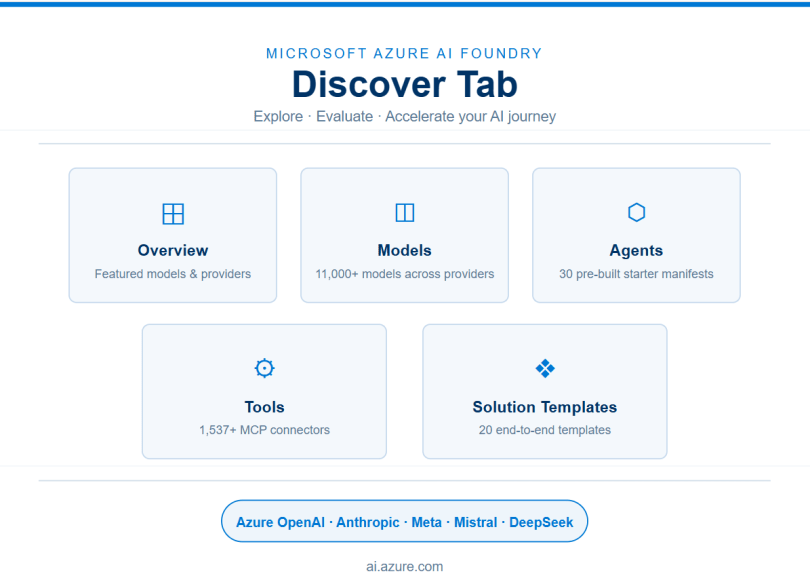
This article walks through the Discover tab in Microsoft Foundry, which serves as your exploration hub. Whether you are evaluating models, browsing agent starters, integrating external tools, or looking for accelerator templates, the Discover tab is where that journey begins.
💡 The Discover tab is accessible from the top navigation bar in the Microsoft Foundry portal. It contains five key sections: Overview, Models, Agents, Tools, and Solution Templates.
1. Foundry Home
When you first land in Microsoft Foundry, the Home screen greets you with your project-specific connection details and quick-start shortcuts. This is your launchpad before diving into the Discover tab.
Key elements on the Home screen:
- API Key — A masked API key that you can copy for programmatic access to your Foundry project.
- Project Endpoint — The unique HTTPS endpoint for your project, used when calling models or agents via the SDK.
- Azure OpenAI Endpoint — A dedicated endpoint for Azure OpenAI-compatible API calls within the same project.
- New Arrivals — A rotating carousel showcasing the latest models added to the Foundry catalog (e.g., gpt-realtime-2, DeepSeek-V4-Pro, Grok-4.3 as shown in the below screenshot).
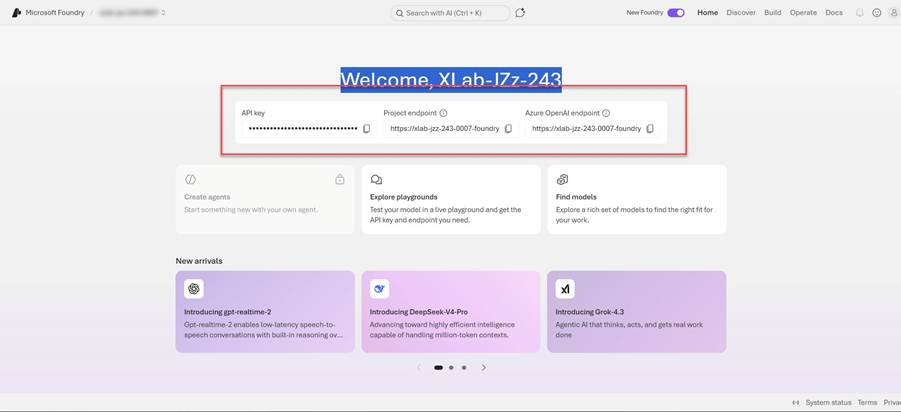
Figure 1: Microsoft Foundry — Home screen showing API Key, Project Endpoint, and New Arrivals.
2. Discover → Overview
The Overview section is the entry point to the Discover tab. It gives you a curated snapshot of what Microsoft Foundry has to offer, organized into the below three useful categories:
- Featured Models — A hand-picked list of top models such as gpt-5.4-pro, claude-opus-4-7, Kimi-K2.5, and model-router. These represent the most capable and widely used models currently available in your project.
- Explore Models from Popular Providers — Quick-filter buttons to browse models by publisher, including Azure OpenAI, Anthropic, Microsoft, Meta, Mistral AI, and DeepSeek.
- Browse our Model Collections — Three curated collections: Direct from Azure (flagship models with seamless integration), Foundry Labs (research-grade models built with Microsoft Research), and Foundry Local (models you can run locally for data privacy).
- Model Leaderboard – Gives a quick at-a-glance comparison of top models ranked by key performance metrics
- Featured Tools: It provides a preview of the most popular MCP connectors available in the full Tools catalog
- Featured Solution Templates: ready-to-use reference architectures you can clone and build on.
💡 The Overview page is ideal for first-time users who want to get a sense of the breadth of available AI capabilities before committing to a specific model or workflow.
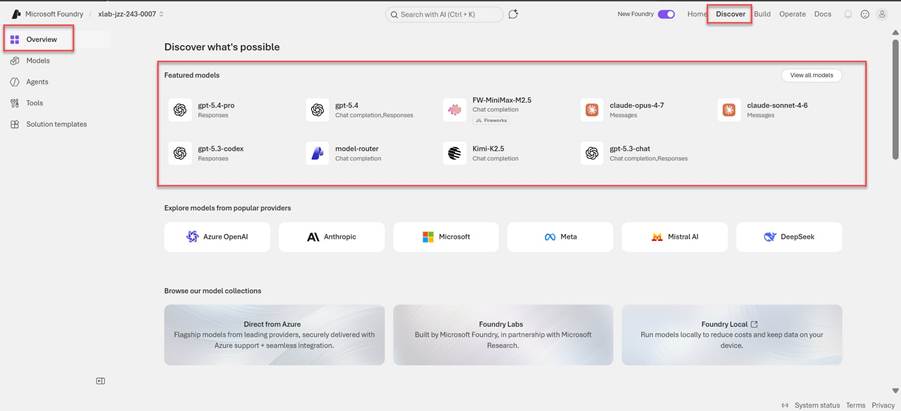
Figure 2: Discover → Overview — Featured Models, Popular Providers, and Model Collections.
3. Discover → Models
The Models section is the most comprehensive catalog in Microsoft Foundry, listing over 11,000 models available across providers and task types. It is the go-to destination when you need to evaluate, compare, or select a model for your specific use case.
Key features:
- Model Count — At time of writing, the catalog contains 11,489 models, filterable to those available in your current project.
- Compare Models — A dedicated button allows side-by-side comparison of models on capability benchmarks.
- View Leaderboard — Opens a ranked leaderboard to evaluate models by performance metrics.
- Search & Sort — Filter models by keyword, or sort by Featured, Newest, or other criteria.
- Availability Filter — Toggle between “All models” and “Available in my project” to see only those you can deploy immediately.
Filter categories in the left panel:
- Collections — Group models by curated collection (e.g., Foundry Labs, Direct from Azure).
- Capabilities — Filter by what the model can do, such as chat completion, text-to-image, or speech recognition.
- Source — Filter by model origin or provider.
- Inference Tasks — Target specific tasks like summarization, translation, or code generation.
- Fine-tuning Methods — Identify models that support fine-tuning.
- Industry — Browse models tailored for specific verticals such as healthcare or finance.
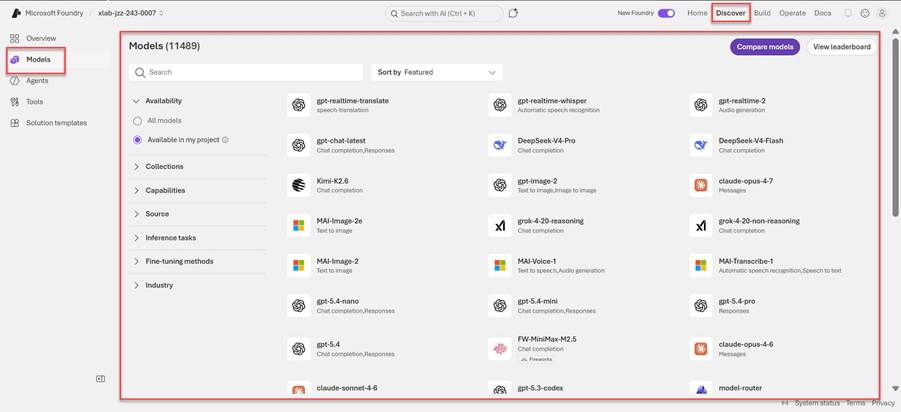
Figure 3: Discover → Models — Full model catalog with filters, compare, and leaderboard options.
4. Discover → Agents
The Agents section (currently in Preview) provides a library of 30 pre-built agent starter manifests created by Microsoft. These are designed to accelerate development by giving you a working starting point for common enterprise AI scenarios.
💡 Important: Starter agent manifests are for educational and experimental use only. They are not production-ready out of the box. Always review risks and ensure compliance with your organization’s policies before deploying.
Sample agents available in the catalog:
- Blog Post Drafter — Automates drafting blog content using Bing search and document tools.
- Internal Procurement Portal — Streamlines procurement workflows with multi-tool integrations.
- RFP Response Drafter — Assists in generating responses to Request for Proposal documents.
- Document Standards Reviewer — Validates documents against defined standards.
- Supplier Qualification Checker — Evaluates supplier data against qualification criteria.
- Campaign A/B Test Analyzer — Analyzes marketing campaign variants using data and code tools.
- Release Notes Generator — Generates software release notes from GitHub and code sources.
- Customer Review Synthesizer — Aggregates and summarizes customer reviews.
- Executive Weekly Digest — Produces a weekly briefing from multiple data sources.
- Brand Mention Monitor — Tracks and reports brand mentions across channels.
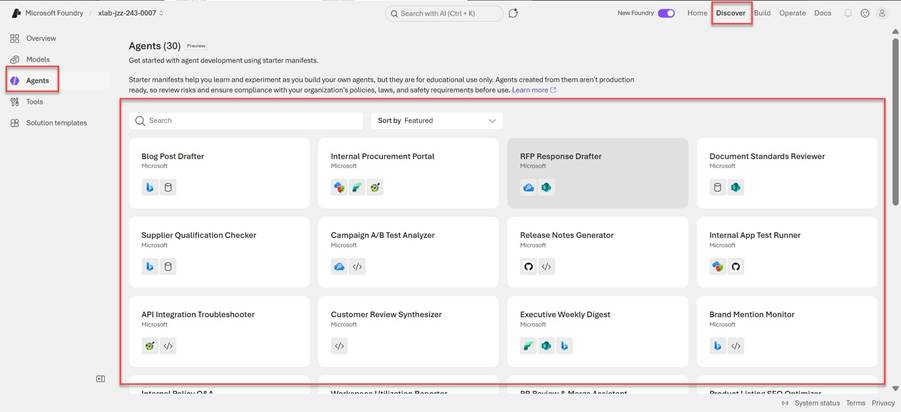
Figure 4: Discover → Agents — 30 pre-built agent starter manifests for enterprise scenarios.
5. Discover → Tools
The Tools section lists over 1,537 connectors and MCP (Model Context Protocol) servers that agents in Microsoft Foundry can use to interact with external systems. This is where you configure the data sources and services your agents will call at runtime.
💡 Note: When connecting to non-Foundry tools, your customer data may leave the Azure compliance boundary and be processed according to the third-party’s data handling policies.
Tool types available:
- Custom (1,462) — User-defined or community-contributed tools tailored to specific integrations.
- Remote MCP (68) — Hosted MCP servers accessible over the network, such as GitHub, Vercel, and Work IQ services.
- Local MCP (7) — MCP servers that run locally, including MongoDB, Azure Cosmos DB, Azure Managed Redis, and Azure Database for PostgreSQL.
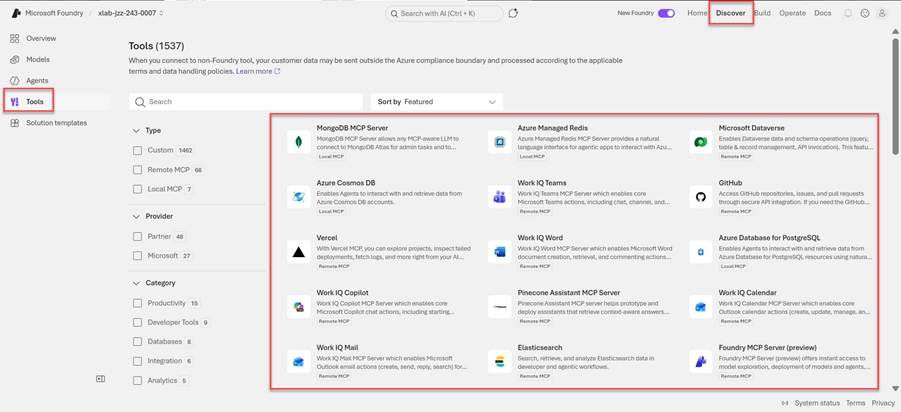
Figure 5: Discover → Tools — 1,537+ MCP servers and connectors for agent integrations.
6. Discover → Solution Templates
The Solution Templates section offers 20 end-to-end application templates that combine models, tools, and infrastructure to solve common AI use cases. Unlike agent starters, these templates are more complete reference architectures that you can clone, review, and deploy.
💡 You are responsible for assessing all risks associated with AI solutions built from these templates, and for complying with applicable laws and safety standards. Refer to the Agent Service and Agent Framework transparency documents for guidance.
How templates work:
- Each template comes with step-by-step instructions and reviewable source code.
- You can clone the template repository directly into your development environment.
- Templates can also be opened and explored on GitHub without deployment.
Sample templates available:
- Get Started with AI Chat — Build and deploy a basic chat app integrated with your data and telemetry insights using Azure Container Apps.
- Get Started with AI Agents — Create and deploy a foundational agent application with actions and telemetry, also using Azure Container Apps.
- Multi-Agent Workflow Automation — Orchestrate and manage groups of AI agents for complex task planning and automation.
- Multi-modal Content Processing — Process claims, invoices, contracts, and other documents by extracting information quickly and accurately.
- Generate Documents from Your Data — Accelerate generation of contracts, invoices, and investment proposals from structured data.
- Improve Client Meetings with Agents — Prepare discussion topics and daily overviews for client meetings automatically.
- Modernize Your Code with Agents — Migrate legacy code to modern languages using an agent-based team approach.
- Build Your Conversational Agent — Leverage conversational AI to create and enhance bots with deterministic flows.
- Unlock Insights from Conversational Data — Analyze large audio and text datasets to surface actionable insights.
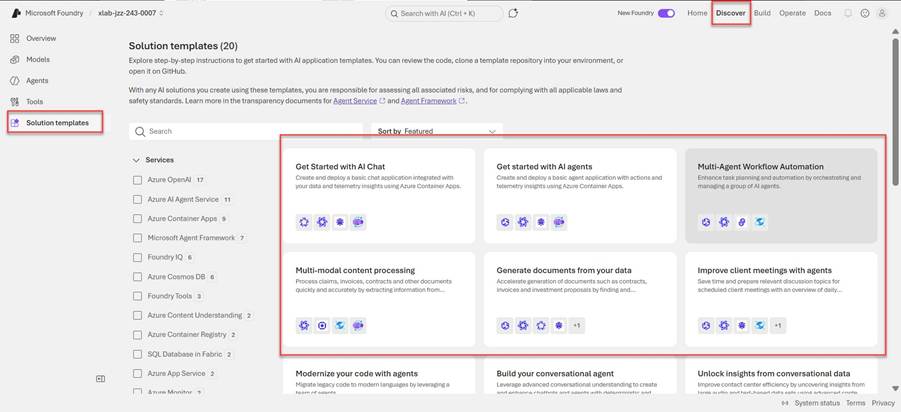
Figure 6: Discover → Solution Templates — 20 end-to-end reference architectures for common AI use cases.
Summary
The Discover tab in Microsoft Foundry is a powerful exploration hub that brings together everything you need to start building AI solutions on Azure. Here is a quick recap of what each section offers:
| Section | Purpose |
| Home | Access your project’s API key, endpoints, and quick-start shortcuts. View new model arrivals. |
| Overview | Get a curated snapshot of featured models, top providers, and model collections. |
| Models | Browse and filter 11,000+ models by capability, source, task, and availability in your project. |
| Agents | Explore 30 pre-built agent starter manifests for common enterprise use cases (Preview). |
| Tools | Connect agents to 1,537+ MCP servers and external services including databases, GitHub, and Microsoft tools. |
| Solution Templates | Clone or explore 20 end-to-end AI application templates with step-by-step guidance. |
Whether you are a developer evaluating your first model or an architect designing a multi-agent workflow, the Discover tab gives you the breadth and depth to make informed decisions before you build.
Discover more from Praveen Kumar Sreeram's Blog
Subscribe to get the latest posts sent to your email.
