 Posted by
 Introduction
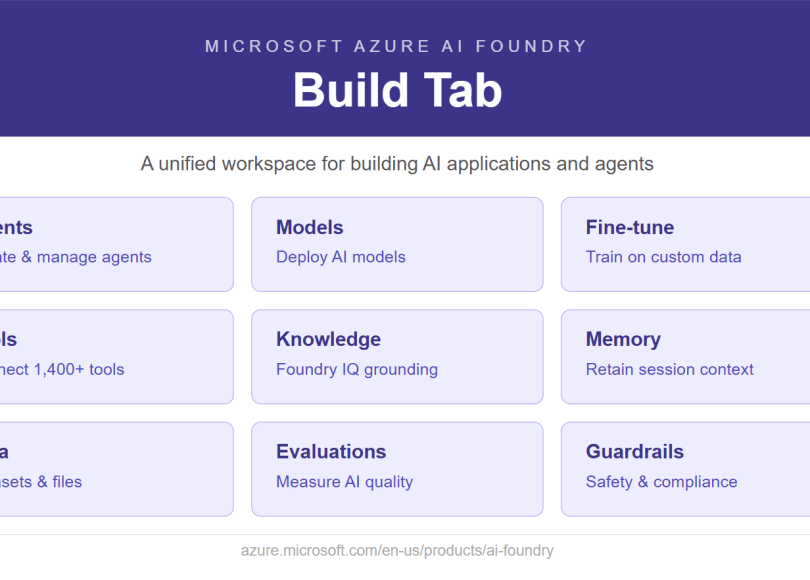
Microsoft Foundry is a unified platform that brings together everything developers, data scientists, and AI engineers need to build, deploy, and govern AI applications. While the Discover tab is where you explore what is available, the Build tab is where the real work happens.
The Build tab is your construction workspace. It is where you create and manage the actual assets of your AI project: the agents that automate tasks, the models that power them, the tools that extend them, the knowledge that grounds them, and the safeguards that protect them.
| The Build tab is accessible from the top navigation bar in the Microsoft Foundry portal. It contains nine key sections: |
- Agents
- Models
- Fine-tune
- Tools
- Knowledge
- Memory
- Data
- Evaluations
- Guardrails.
1. Agents
The Agents section is typically the starting point for most teams working in Foundry. This is where you design, configure, and manage AI agents — autonomous systems that can carry out multi-step tasks, interact with users, and take action using connected tools and knowledge sources.
An agent in Foundry is more than a chatbot. It is a goal-directed system that can plan steps, use tools like web search or code execution, query knowledge bases, and remember context across conversations. Foundry supports both single agents and multi-agent workflows, where several specialized agents collaborate to complete complex business processes.
Key capabilities in the Agents section:
- Create agent — Build a new agent from scratch by defining its name, instructions, connected model, tools, knowledge, and memory settings through a guided configuration UI.
- Code agent — Build or configure an agent programmatically using the Foundry SDK (Python, C#, JavaScript, or Java), giving developers full control over agent logic.
- Browse templates — Start from a curated library of pre-built agent templates for common scenarios, such as customer support, research automation, or data retrieval.
- Workflows (Preview) — Design multi-agent pipelines where agents hand off tasks to one another in a structured sequence or in parallel, enabling sophisticated automation patterns.
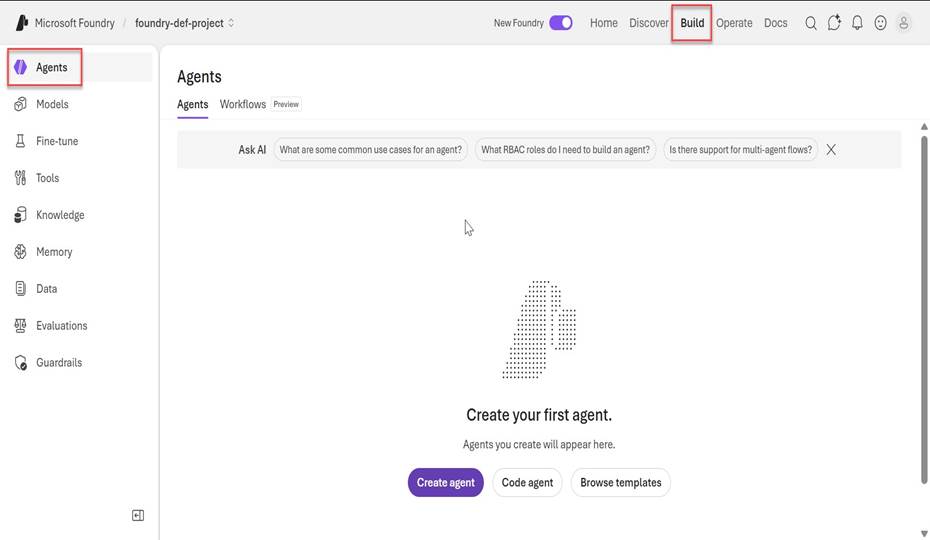
Figure 1: Build > Agents — The starting point for creating and managing AI agents in your Foundry project.
2. Models
The Models section is where you manage the AI model deployments that power your agents and applications. Once you have selected a model from the Discover catalog, you deploy and operate it from here.
Foundry supports two deployment modes. Managed compute deployments provision dedicated virtual machines where model weights are stored — ideal for fine-tuned models and scenarios requiring low latency or data isolation. Serverless deployments give you on-demand API access to hosted models, billed per token consumed, with no infrastructure to manage.
Key tabs within the Models section:
- Deployments — View and manage all currently deployed models in your project. Deploy a base model or a fine-tuned model directly from this tab.
- Models (Preview) — Browse and compare models available for deployment within your project context.
- AI Services — Access and manage connections to Azure AI Services such as Azure OpenAI, Azure Speech, Azure Vision, and Azure Language.
- Batch jobs — Run large-scale, asynchronous inference jobs — useful for processing high volumes of data without holding open API connections.
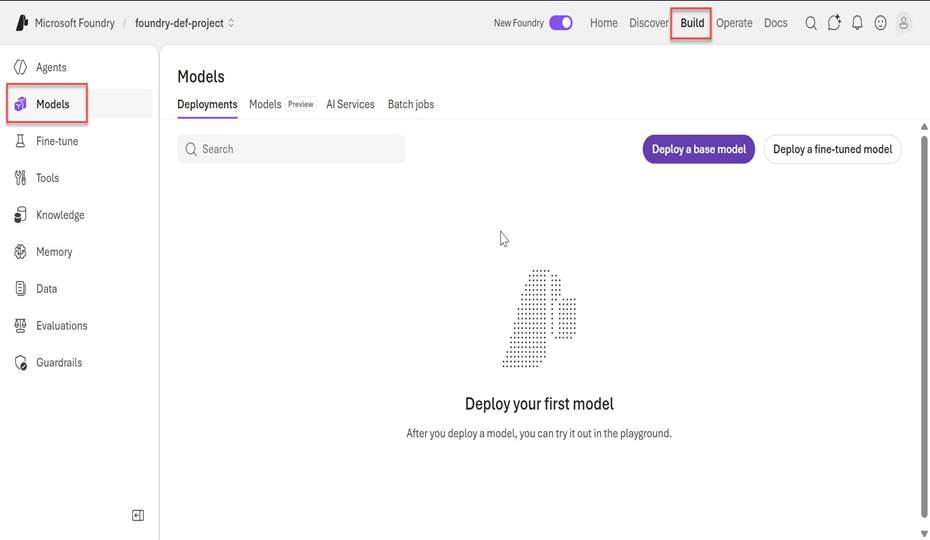
Figure 2: Build > Models — Manage deployments, browse available models, configure AI services, and run batch jobs.
3. Fine-tune
Fine-tuning allows you to take a pre-trained foundation model and train it further on your own domain-specific data. The result is a customized model that performs better on your specific tasks while retaining its general language understanding and capabilities.
This is particularly valuable when a base model produces inconsistent outputs on specialized terminology, needs to learn a particular tone or format, or must follow domain-specific conventions that are difficult to enforce through prompting alone.
Fine-tuning techniques supported in Foundry:
- Supervised fine-tuning — Train the model on labeled input-output pairs to align it with your desired behavior and output format.
- Direct Preference Optimization (DPO) — Use ranked pairs of preferred and rejected outputs to teach the model which responses are better.
- Reinforcement learning techniques — Apply reward-based training to further refine model behavior on complex or open-ended tasks.
Once a fine-tuning job completes, the resulting model can be deployed from the Models section and used in any agent or application within your Foundry project.
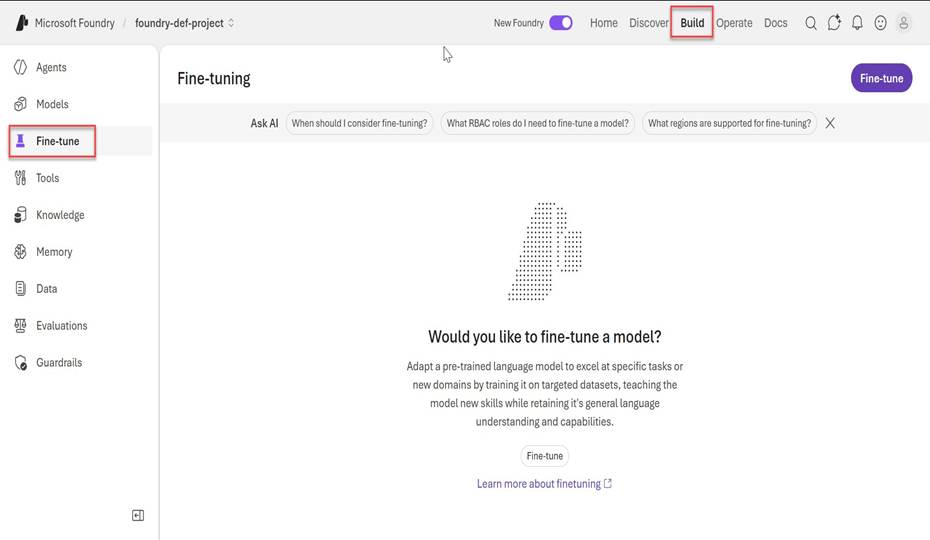
Figure 3: Build > Fine-tune — Customize pre-trained models on your own data to improve task-specific performance.
4. Tools
Tools are what transform an AI model from a text generator into an action-capable agent. They allow agents to reach beyond their training data and interact with the world — searching the web, executing code, querying databases, calling APIs, or triggering business workflows.
The Tools section in Foundry is organized around Toolboxes: named collections of tools that you curate and assign to one or more agents. This makes it easy to standardize which capabilities are available to each agent and reuse the same toolbox across different projects.
Key tabs within the Tools section:
- Toolboxes (Preview) — Create and manage named collections of tools that can be assigned to agents. A toolbox might include a web search tool, a SharePoint connector, and a code interpreter, grouped together for a research agent.
- Tools — Browse and add individual tools from a catalog of over 1,400 connectors, including MCP (Model Context Protocol) servers, Azure Logic Apps connectors, and custom API definitions. Tools are usable by hosted agents and GitHub Copilot alike.
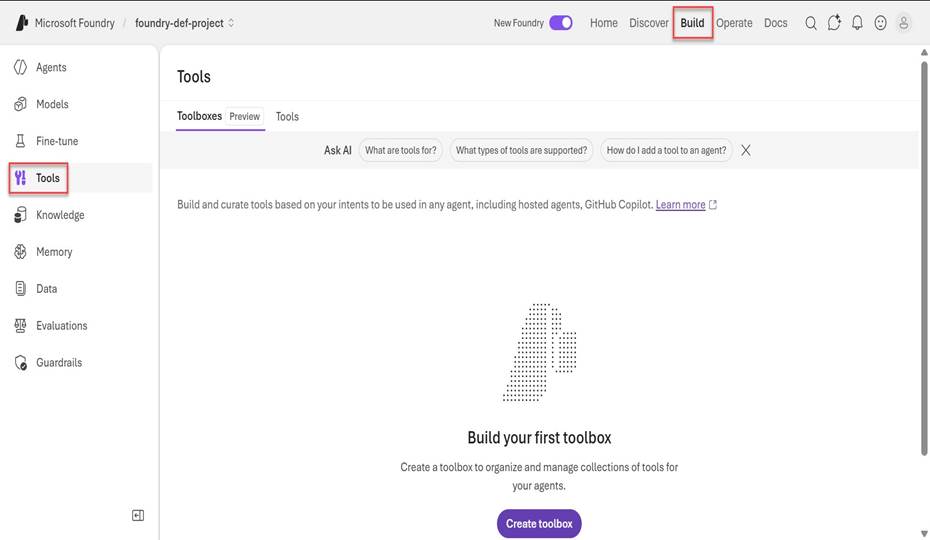
Figure 4: Build > Tools — Build and manage toolboxes to give your agents the capabilities they need to take action.
5. Knowledge
Knowledge (powered by Foundry IQ) is where you connect your enterprise data to your agents, so they can ground their responses in your organization’s actual content rather than relying solely on what was in the model’s training data.
Foundry IQ is Microsoft’s intelligent knowledge layer built on Azure AI Search. Unlike traditional retrieval-augmented generation (RAG) that fires a single query at a single index, Foundry IQ treats retrieval as a reasoning task. When an agent queries a knowledge base, it uses an LLM to plan optimal sub-queries, follows chains of information across documents, and returns synthesized answers with citations.
Supported knowledge sources:
- SharePoint Online — Connect documents and sites from your Microsoft 365 tenant.
- OneLake (Microsoft Fabric) — Access structured and unstructured data stored in your organization’s data lake.
- Azure AI Search indexes — Plug in an existing search index you have already built.
- External and web sources — Include public web content alongside internal sources for broader context.
Knowledge bases are permission-aware, meaning agents will only surface content that the querying user is authorized to see. A single knowledge base can also be shared across multiple agents, avoiding duplicated indexing and ensuring consistent retrieval behavior.
Key tabs within the Knowledge section:
- Knowledge bases — Create and manage multi-source knowledge bases for use in your agents.
- Indexes — View and manage the underlying Azure AI Search indexes that support your knowledge bases.
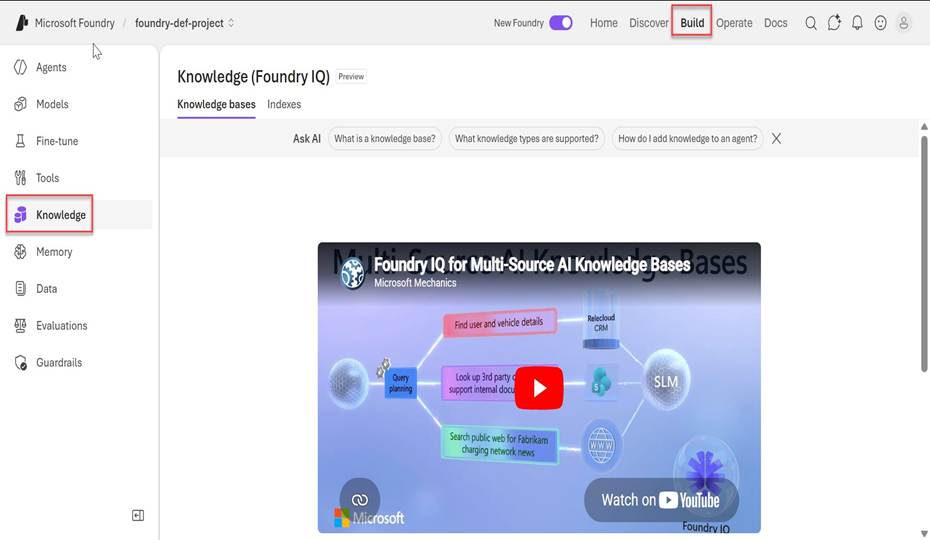
Figure 5: Build > Knowledge (Foundry IQ) — Connect enterprise data sources to ground your agents with accurate, permission-aware context.
6. Memory
Memory enables agents to retain and recall important context across separate conversations, without requiring users to repeat themselves each time they start a new session. This is what allows an agent to remember user preferences, track the state of a long-running task, or reference prior interactions when answering a follow-up question days later.
In Foundry, memory is managed through Memory Stores — persistent storage containers that agents can read from and write to throughout their lifecycle. Each memory store can be scoped to specific agents and configured to control what types of information are retained and for how long.
How Memory fits into an agent:
- Context retention — The agent stores relevant facts from a conversation (such as user preferences or task progress) into the memory store at the end of a session.
- Context recall — At the start of a subsequent conversation, the agent retrieves relevant memories and incorporates them into its system context before responding.
- Cross-session continuity — Users receive consistent, personalized responses over time without needing to re-explain their situation with every new message.
Note: Enabling memory requires assigning the Foundry project’s managed identity the appropriate Foundry User role, as shown in the setup warning visible in the portal screenshot.
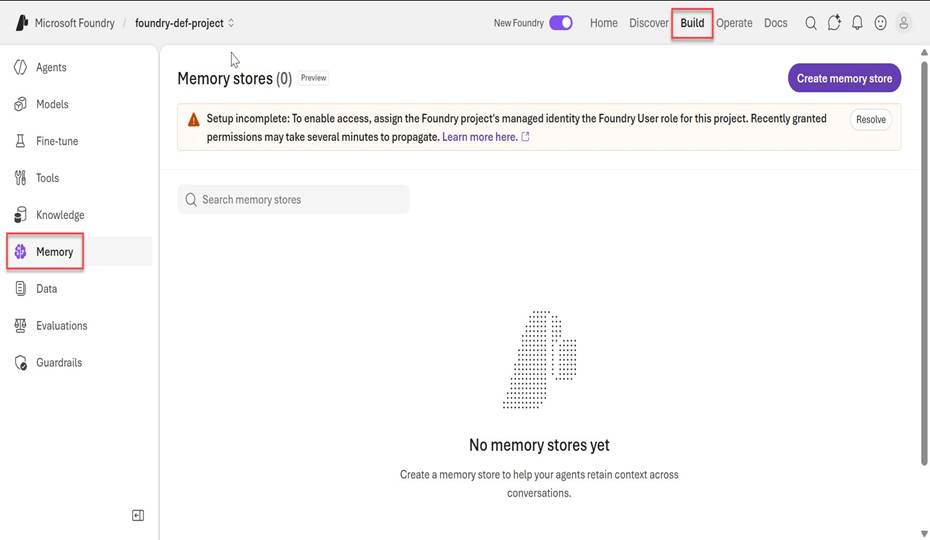
Figure 6: Build > Memory — Create memory stores to help agents retain context and deliver personalized experiences across conversations.
7. Data
The Data section is the fuel depot for your AI project. It is where you manage the datasets and files that are used across the platform — for fine-tuning models, running evaluations, generating synthetic training data, and storing logged completions for analysis and improvement.
Key tabs within the Data section:
- Datasets — Upload and manage structured datasets (typically in JSONL format) used as training and evaluation inputs. Datasets can be versioned and referenced by fine-tuning jobs and evaluation runs.
- Files — Manage individual files uploaded to your project, such as documents, reference materials, or prompt templates.
- Synthetic data generation — Use AI to generate realistic training examples and test cases based on specifications you define. This is valuable when real labeled data is scarce, expensive to collect, or restricted for privacy reasons.
- Stored completions (Preview) — Capture and store model outputs from production traffic, enabling you to review agent responses, identify failure modes, and build datasets for further fine-tuning or evaluation.
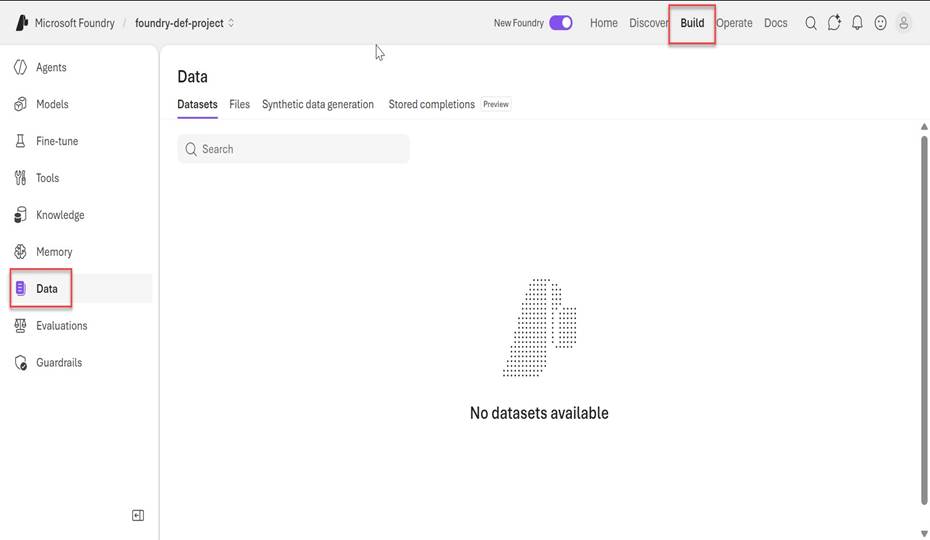
Figure 7: Build > Data — Manage datasets, files, synthetic data generation, and stored completions for your AI project.
8. Evaluations
Evaluations is where you measure the quality, accuracy, and safety of your AI applications before and after deployment. It gives you a systematic, evidence-based way to compare model versions, prompt variations, or agent configurations against each other using industry-standard metrics.
Without evaluations, shipping an AI agent is largely an act of faith. With evaluations, you can quantify exactly how your agent performs on the tasks that matter — and make confident decisions about when it is ready for production.
Key tabs within the Evaluations section:
- Evaluations — Create and run evaluation jobs that score your model or agent outputs against a dataset using built-in or custom metrics. Compare results across runs to track improvements over time.
- Evaluator catalog — Browse a library of pre-built evaluators covering dimensions such as groundedness, coherence, relevance, fluency, and safety. Choose the metrics that matter most for your use case.
- Red team — Run automated adversarial testing to probe your agent for vulnerabilities, undesirable behaviors, or safety failures before they reach real users.
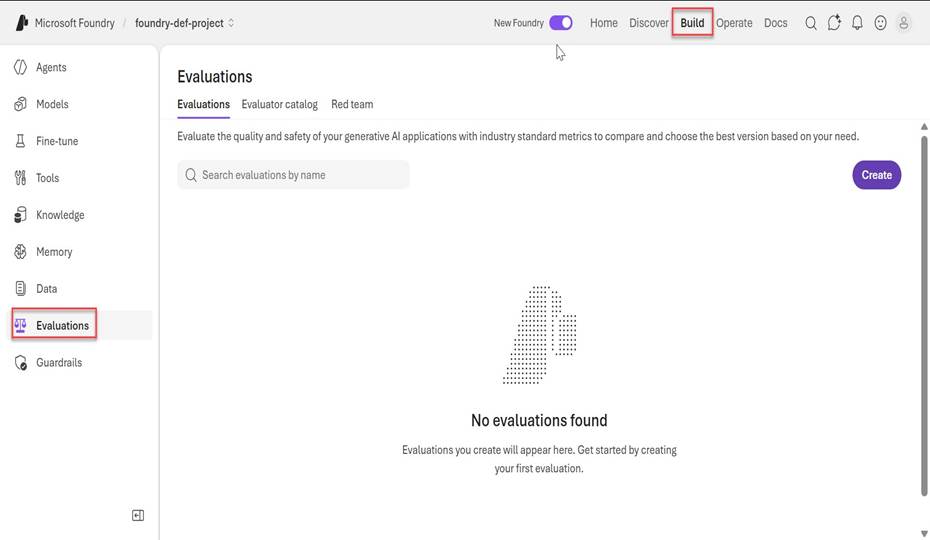
Figure 8: Build > Evaluations — Measure quality and safety of your AI applications using industry-standard metrics and red teaming.
9. Guardrails
Guardrails are the safety and compliance layer of your AI deployment. They are configurable content filters and controls that sit inline with model requests and responses, detecting and blocking harmful, off-topic, or policy-violating content before it reaches users or acts on the world.
Foundry ships with two default guardrail configurations — Microsoft.Default and Microsoft.DefaultV2 — which provide a baseline level of content safety filtering across all deployed models. These can be used immediately or extended with custom rules tailored to your organization’s specific policies and use cases.
Key tabs within the Guardrails section:
- Guardrails — Create and manage content filter configurations. Apply them to specific models or agents, and control the severity thresholds for categories such as hate speech, violence, self-harm, and sexual content.
- Blocklists — Define custom word and phrase lists that should always be blocked in inputs or outputs, regardless of the model’s own judgment.
- Integrations (Preview) — Connect guardrails to external compliance or content moderation systems for scenarios requiring additional policy enforcement beyond Foundry’s built-in filters.
Guardrails can be scoped to a model deployment, an agent, or a multi-agent workflow. They run inline with every request, meaning there is no separate call required — protection is built into the execution path by default.
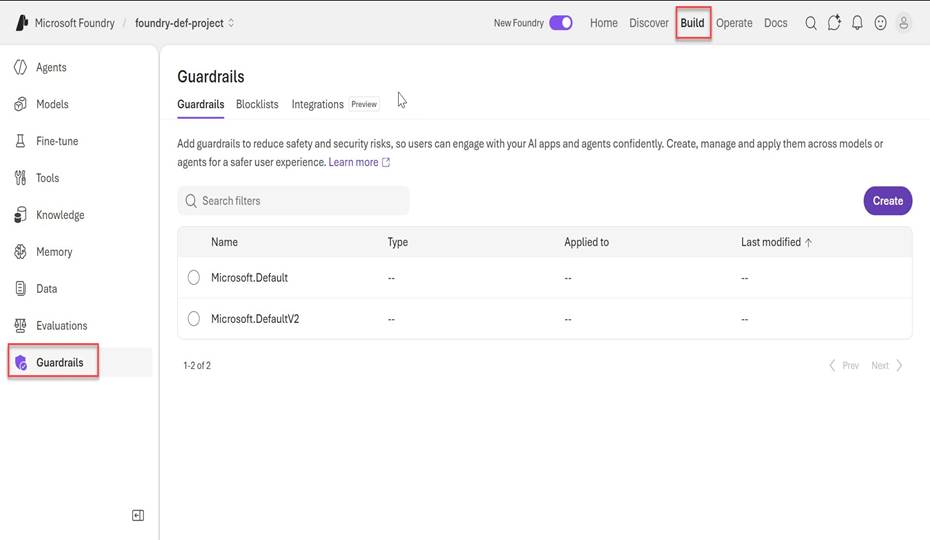
Figure 9: Build > Guardrails — Define and apply content safety filters, blocklists, and compliance controls across models and agents.
Summary: The Build Tab at a Glance
| Section | Purpose | Key Capabilities |
| Agents | Create & manage AI agents | Create agent, Code agent, Browse templates, Workflows |
| Models | Deploy & manage AI models | Deployments, AI Services, Batch jobs |
| Fine-tune | Customize models on your data | Supervised learning, DPO, Reinforcement learning |
| Tools | Give agents capabilities | Toolboxes, 1,400+ connectors, MCP servers |
| Knowledge | Ground agents in enterprise data | Multi-source knowledge bases, Foundry IQ, Indexes |
| Memory | Persist context across sessions | Memory stores, Cross-session continuity |
| Data | Manage training & eval data | Datasets, Files, Synthetic generation, Stored completions |
| Evaluations | Measure quality & safety | Evaluator catalog, Metric comparison, Red teaming |
| Guardrails | Enforce safety & compliance | Content filters, Blocklists, Integrations |
Discover more from Praveen Kumar Sreeram's Blog
Subscribe to get the latest posts sent to your email.
