 Posted by
 Introduction
If you’ve tried invoking a Microsoft Fabric Notebook from a Data Pipeline and hit the “Failed to create Livy session” error, this article is for you. I’ll walk you through the exact error, what causes it, and the simple fix that resolved it for me.
The Goal
A straightforward task — invoke a Fabric Notebook from a Data Pipeline, pass a parameter to it, and print a message.
Notebook code:
# Cell 1 — Parameter cell (toggle via "..." → Toggle parameter cell)
city_name = "Seattle"  # default value
# Cell 2 — Print the parameter
print(f"Selected City: {city_name}")
Simple enough, right? The notebook runs perfectly in interactive mode. But the moment it’s triggered from a Pipeline Notebook Activity, it fails.
The Error
Notebook execution failed at Notebook service
with HTTP status code - '200'

Error: Failed to create Livy session for executing notebook.
{
  "code": "BadRequest",
  "message": "Encountered internal error while calling
              TokenProvider to get obo token.
              The return code is BadRequest.",
  "httpStatusCode": 500,
  "ErrorSource": "Fabric/Core Platform AuthNZ and Metadata"
}
The key phrase here is “obo token” — OBO stands for On-Behalf-Of, an OAuth 2.0 flow that allows one service to act on behalf of a user when calling another service. The Pipeline is failing to get this token when trying to spin up the Spark/Livy session for the Notebook.
Does It Work on Regular Fabric Capacity?
✅ Yes — it works perfectly on a paid Fabric capacity (F SKU).
The OBO token flow is fully configured and supported on paid F SKU capacities. The issue only surfaces on Fabric Trial capacity, where the internal preauthorization between the Pipeline service and the Spark session token provider is not fully configured by Microsoft.
So if you’re on a paid capacity and hitting this error, skip straight to the fix below — it applies to you too.
The Fix — Leave the Connection Field Blank
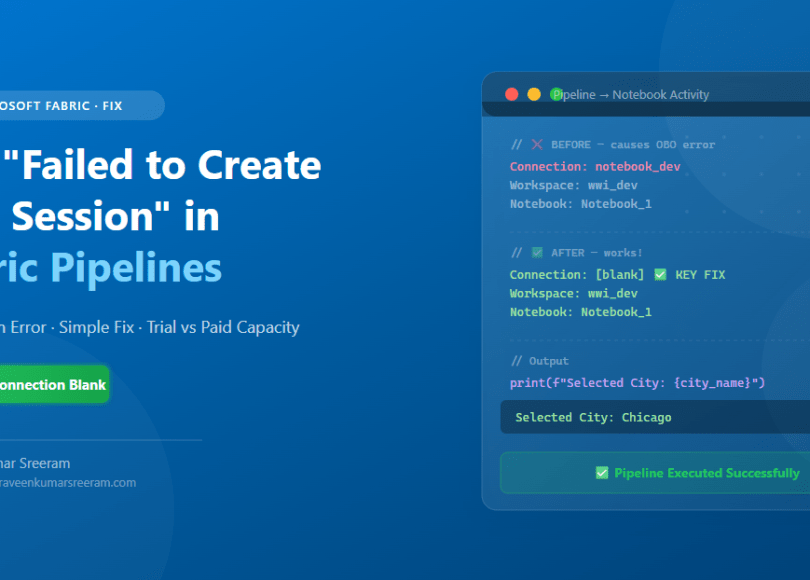
The cause of the error is an explicit OAuth connection selected in the Pipeline Notebook Activity settings.
❌ What Causes the Failure
When you create a connection (OAuth 2.0 or Workspace Identity) and select it in the Notebook Activity, Fabric attempts to use the OBO token flow to authenticate — which fails on Trial capacity and can also fail on paid capacity if the connection is misconfigured.
Connection: notebook_dev ← Triggers OBO token flow ❌
✅ The Fix
Simply leave the Connection field blank:
Connection: [blank — do not select anything] ✅
Workspace:  wwi_dev                          ✅
Notebook:   Notebook_1                       ✅
When no connection is selected, Fabric uses its native internal authentication — bypassing the OBO token flow entirely and connecting to the Livy session directly.
Step-by-Step Setup
Set Up the Notebook
Cell 1 — Parameter cell (click ... on the cell → Toggle parameter cell):
# default value — Pipeline will override this
city_name = "Seattle"
Cell 2 — Print the parameter:
print(f"Selected City: {city_name}")
Configure the Pipeline Notebook Activity
| Setting | Value | Status |
|---|---|---|
| Connection | Leave blank — do not select anything | ✅ KEY FIX |
| Workspace | your-workspace | ✅ |
| Notebook | Notebook_1 | ✅ |
| Parameter Name | city_name | ✅ |
| Parameter Value | Chicago | ✅ |
Run the Pipeline
Trigger a new run (not Retry) and check the Monitor tab. The notebook should execute successfully and print:
Selected City: Chicago
Key Takeaways
Leaving the Connection field blank is the fix — Fabric handles auth natively without the OBO flow.
The issue is reproducible on Fabric Trial capacity but works on paid F SKU.
Always use Toggle parameter cell to properly pass parameters from Pipeline to Notebook.
Supported parameter types are string, int, float, and bool only.
The %%configure magic command must be in the first cell when running from a Pipeline.
Conclusion
A simple configuration oversight — selecting an explicit connection in the Notebook Activity — can cause hours of frustration with cryptic OBO token errors. The fix is just as simple: leave the Connection field blank and let Fabric handle authentication natively.
I hope this saves you time! If you found this helpful, share it and drop a comment below.
References
Praveen Kumar Sreeram
Microsoft Certified Trainer · C# Corner MVP (3x) · Azure Certified
Author of the Azure Serverless Computing Cookbook. Active content creator at praveenkumarsreeram.com and @azurespace on YouTube.
Do you like this article? If you want to get more updates about these kind of articles, you can join my Learning Groups
Discover more from Praveen Kumar Sreeram's Blog
Subscribe to get the latest posts sent to your email.
