 Posted by
 Microsoft Fabric Deployment Pipelines are the backbone of any professional Fabric CI/CD strategy. In this guide — part of the Microsoft Fabric CI/CD Training series — we do a complete deep dive: from creating your first pipeline and assigning workspaces, through comparing stages, running deployments, parameterizing connections, all the way to known limitations and deployment rules. Whether you are just getting started or looking to harden a production-grade release process, this article covers everything you need.
- What Are Deployment Pipelines?
- Creating a Deployment Pipeline
- Assigning Workspaces to Stages
- Comparing Content Across Stages
- Access Levels and Team Permissions
- Running Deployments to Promote Fabric Items
- Validating Changes After Deployment
- Common Issues When Pipelines Are Not Used Properly
- Parameterizing Connections
- Variable Libraries for Each Environment
- Known Limitations
- Deployment Rules
- Quick Reference
1. What Are Deployment Pipelines?
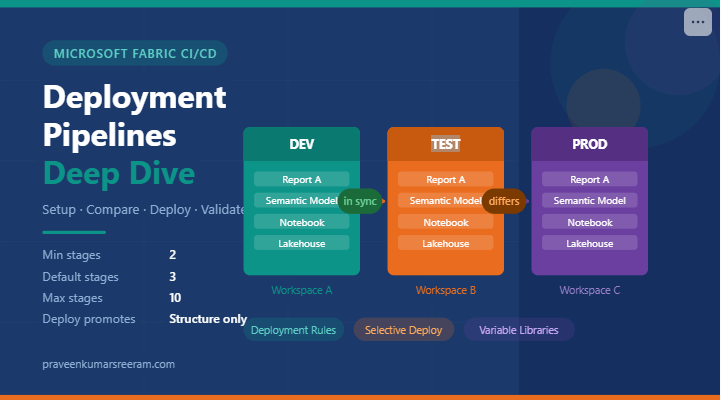
Deployment Pipelines are Microsoft Fabric’s built-in Application Lifecycle Management (ALM) tool. They give data teams a structured, visual, and governed way to promote Fabric content — reports, semantic models, notebooks, lakehouses, data pipelines — across environments without manual copying, reconfiguration, or the risk of human error.
Before deployment pipelines existed, teams would manually recreate or copy items between workspaces when moving from development to production. This was slow, error-prone, and almost impossible to audit. Deployment Pipelines solve all three problems: promotion is a single click, configurations are overridden automatically via rules, and every deployment is logged with notes.
2. Creating a Deployment Pipeline
Before you build your first pipeline, understand these key limits — they come up constantly in interviews and real-world planning:
|
2
Minimum Stages
|
3
Default Stages
|
10
Maximum Stages
|
When you create a new pipeline, Fabric automatically creates three stages: Development, Test, and Production. You can rename stages, add up to seven more, or remove stages down to the minimum of two.
3. Assigning Workspaces to Pipeline Stages
|
One-to-One Mapping
Every pipeline stage maps to exactly one workspace. No workspace sharing across stages or pipelines is permitted.
Workspace Eligibility
Workspaces must meet capacity and permission requirements before they appear in the assignment dropdown.
History & Rules Warning
Unassigning a workspace permanently deletes all deployment history and configured rules for that stage. This cannot be undone.
|
Vacant Stage Requirement
A stage must be vacant before you can assign a workspace. Unassign the existing workspace first if a swap is needed.
Pairing on Assignment
When a workspace is assigned, Fabric auto-pairs items by matching item name, type, and folder location across adjacent stages.
Deletion Restriction
A workspace assigned to a pipeline cannot be deleted via Workspace Settings. Unassign it from the pipeline first.
|
Understanding Item Pairing
Item pairing is how Fabric knows which item in the target stage to overwrite during deployment. Pairing criteria — in priority order:
- Item Name — must match
- Item Type — must match (e.g., Report, Semantic Model, Notebook)
- Folder Location — used as a tiebreaker when duplicates exist with the same name and type
Once paired, renaming an item does not unpair it. Items added directly to a workspace (outside the pipeline) are not automatically paired — they become unpaired duplicates that cause confusion during future deployments.
4. Comparing Content Across Stages
Before every deployment, use the built-in comparison view to understand exactly what will change. The pipeline home page shows a visual indicator between each pair of adjacent stages:
Green — Stages are identical. All paired items have the same metadata. No deployment needed to sync.
Orange — At least one item has been added, modified, or removed since the last deployment.
When you select a stage, each item shows one of four status labels:
| Status Label | Meaning | Deploy Impact |
|---|---|---|
| Same as Source | No difference detected | No change on deploy |
| Different from Source | Schema, name, path, or unapplied rule change | Source overwrites target |
| Only in Source | New item in source not yet in target | Cloned into target on deploy |
| Not in Source | Exists in target only | Unaffected by deployment |
5. Access Levels and Team Permissions
Pipeline access and workspace access are always separate. A user needs appropriate rights in both to deploy.
— Full control: manage pipeline, assign workspaces, deploy, configure rules, manage access.
— Deploy content, compare stages, view pipeline configuration.
— Deploy to stages where they also hold Contributor rights in both source and target workspaces.
— Read-only: view pipeline canvas, stages, compare results. Cannot deploy.
6. Running Deployments to Promote Fabric Items
Fabric Deployment Pipelines offer three deployment modes:
7. Validating Changes After Deployment
A successful deployment click is just the beginning. Always validate the target environment before declaring the release done.
|
✅ Pipeline Compare View
Re-open the pipeline after deployment. The stage indicator should turn green. Confirm all expected items now show Same as Source.
✅ Data Refresh & Reports
Manually trigger a semantic model refresh. Open promoted reports and visuals to confirm data is rendering correctly.
|
✅ Workspace Verification
Navigate to the target workspace. Confirm promoted items are present with correct versions, folder structures, and linked dependencies.
✅ Connection & Gateway Check
Validate that data source connections point to environment-appropriate endpoints and gateway connections are online.
|
8. Common Issues When Pipelines Are Not Used Properly
| Risk | Issue | What Happens |
|---|---|---|
| HIGH | Hardcoded data source connections | Dev endpoints carried into Production — reports query the wrong database |
| HIGH | Missing Deployment Rules | Promoted items inherit Dev configs in Production — data leakage risk |
| HIGH | Ignoring dependent items | Deploying a report without its semantic model breaks it in the target stage |
| MED | Deploying without comparing first | Deliberate Production changes get overwritten by older Dev versions |
| MED | Unpaired items creating duplicates | Items added directly to workspaces create unpaired copies that confuse deployments |
| LOW | No semantic model refresh post-deploy | Reports show no data or stale data after a successful structural deployment |
9. Parameterizing Connections
When items are promoted from Dev → Test → Prod, they carry their original connection strings. Without parameterization, every promoted artifact points to the wrong environment. There are two approaches:
10. Variable Libraries for Each Environment
Variable Libraries are a Microsoft Fabric item (currently in preview) that stores environment-specific key-value configuration pairs within a workspace. They complement Deployment Pipelines by handling runtime configuration — values read by code when it executes, rather than overrides applied at deploy time.
|
What to Store
Runtime Usage
Spark notebooks reference library values via the Fabric SDK. Data Pipelines read variable values at execution time to route connections correctly.
|
One Library Per Environment
Create a separate Variable Library in each workspace (Dev, Test, Prod). Each library holds values specific to that environment.
Version & Change Control
Variable Libraries are versioned Fabric items — commit them to Git for change tracking. Changes are visible in the Compare view before promotion.
|
11. Known Limitations of Deployment Pipelines
| Limitation | Detail |
|---|---|
| Item Support | Not all Fabric item types can be deployed. Unsupported items appear in the list but cannot be promoted — always verify support before designing your pipeline strategy. |
| Workspace Restrictions | A workspace can only be assigned to one pipeline stage across all pipelines. Must be unassigned before it can be used elsewhere. |
| Empty Folders | Empty workspace folders cannot be deployed. A folder is only replicated in the target when at least one of its items is promoted. |
| Cross-Folder Selection | Default folder view does not allow selecting items from different folders simultaneously. Use Flat List View to enable cross-folder selective deployment. |
| Backward Deployment | Only supported when the target stage has no workspace assigned. Cannot overwrite content in an existing assigned stage. |
| History Loss on Unassign | Unassigning a workspace permanently deletes all deployment history and configured rules for that stage. Irreversible. |
| Permissions Complexity | Pipeline access and workspace access are independent. Users need Contributor rights in both the source and target workspace to deploy. |
| Rename & Pairing Side Effect | Renaming a folder (even without changing its items) marks all paired items as Different from Source, requiring a re-deployment to sync. |
12. Deployment Rules
Deployment Rules are the mechanism that makes multi-environment pipelines actually work safely. They are stage-specific overrides applied automatically when content is promoted to a target stage — ensuring promoted items use environment-correct configurations without any manual intervention.
13. Quick Reference
| Concept | Key Fact |
|---|---|
| Minimum stages | 2 |
| Default stages | 3 — Development, Test, Production |
| Maximum stages | 10 |
| Workspace per stage | Exactly 1 — no sharing across stages or pipelines |
| Pairing criteria | Name + Type + Folder (tiebreaker) |
| Backward deployment | Only to empty (unassigned) stages |
| Deployment promotes | Structure only — NOT data. Refresh semantic models after deploy. |
| Rule types | Data Source Rules & Parameter Rules |
| Rules applied | Automatically on next deployment after configuration |
| Unassign impact | Permanently deletes all history & rules for that stage |
| Green indicator | Stages in sync — no differences detected |
| Orange indicator | At least one item differs between adjacent stages |
| Variable Libraries | Runtime key-value config store per workspace (preview feature) |
This article is part of the Microsoft Fabric CI/CD Training series. Download the full training materials — including a 10-question quiz with answer explanations and a 20-question interview prep guide.
Part of the Microsoft Fabric CI/CD Training series · Deployment Pipelines Module · Published on praveenkumarsreeram.com
 Praveen Kumar Sreeram's Blog